How Does Otter Work? A Practical Guide
Learn how Otter.ai leverages AI to transcribe audio to text, its key features, pricing plans, and practical walkthroughs. Discover who can benefit from Otter.

.png)
.avif)
Juggling note-taking during meetings and manually transcribing audio from varied sources can be tedious, often leading to missed important points. Fortunately, automation can simplify these tasks and enhance your productivity.
Otter is an artificial intelligence (AI) meeting assistant that takes notes, records and transcribes audio, and generates meeting summaries. Otter is cross-platform, allowing you to connect regardless of whether you’re using Apple, Windows, Android, or iOS. It can also record and transcribe across different platforms, including Google Meet, Microsoft Teams, and Zoom.
In this article, we explain how Otter can transform your workflow and increase your productivity.
How does Otter work?
At the heart of Otter, machine learning (ML) algorithms and natural language processing (NLP) technology work together to transcribe audio to text. ML models are trained on vast amounts of data, enhancing Otter’s accuracy in transcription tasks. With NLP technology, Otter can process human speech and convert it to text.
Otter can transcribe audio from different sources, including recorded meetings, live conversations, and audio files stored on your computer or phone. It also uses speech recognition technology to identify different speakers in audio content and transcribe what each person says.
To transcribe real-time meetings, you’ll need to connect Otter to your Google or Microsoft calendar. This calendar connection allows Otter to automatically join any scheduled calendar event with a Google Meet, Microsoft Teams, or Zoom meeting link. The AI meeting assistant can join these meetings even when you’re unavailable and generate transcripts, ensuring you don’t miss anything.
Additionally, Otter can connect to multiple meetings at once, increasing productivity and efficiency.
Key features
Otter offers various features, including:
- Real-time transcription. Otter can sync to your calendar events—connecting and transcribing your meetings in real time.
- Speaker identification. Otter can identify multiple speakers in audio, allowing you to follow transcribed meetings easily.
- Time stamps. Otter can provide time stamps for each speaker or high-impact moments in your meetings. Time stamps allow you to trace what happened or who said what during a meeting.
- Action items. This feature allows you to see which team members have been assigned specific tasks.
- Key takeaways. You can generate a summary of high-impact moments and decisions that happened in your meetings from a centralized place. Having a high-level overview allows you to stay organized and share information with team members.
- Search and keywords. Otter transcribes audio and stores the text in editable and searchable transcripts. You can use keywords to search and find specific information in your transcripts quickly.
- Editing and annotation. Otter can produce live transcripts, which you and other team members can edit and annotate in real time. Annotation allows you to modify transcripts to make certain sections stand out.
- Sharing and collaboration. You can share transcripts with others via email, a dedicated Otter channel, or a custom link. You can also invite members to an Otter workspace where they can access different conversations.
- Custom vocabulary. Otter allows you to add custom vocabularies like names, acronyms, and unique spellings to enable it to transcribe audio to text more accurately. Depending on your plan, you can add between five and 200 words and phrases to your personal vocabulary.
- Audio playback. You can rewind, fast-forward, or pause audio playback according to your needs.
- Summary generation. Otter can generate summaries of your meetings and conversations in real time, providing you with quick insights.
Pricing
Otter offers the following plans:
- Basic or free plan but with limited features
- Pro plan for $10 per user per month (when billed annually)
- Business plan for $20 per user per month (when billed annually)
- Enterprise plan for a custom quote
Getting started with Otter.ai
From signing up to reviewing and sharing transcripts, we’ll explain how to get started with Otter.
1. Sign up
To sign up for an Otter account, navigate to the Otter.ai sign-up page. You can create an Otter account using an email and password or with a Microsoft or Google account.

Once you’ve signed up, Otter will take you through several onboarding steps. You may also be prompted to grant Otter access to your Google or Microsoft calendar.

You should be directed to the following dashboard upon successful sign-up.

2. Download the mobile app
Otter also works with Android and iOS devices through a mobile app. This allows you to access Otter’s core functionalities even when you’re away from your computer.
If you’re on Android, download the Otter app through the Google Play Store.
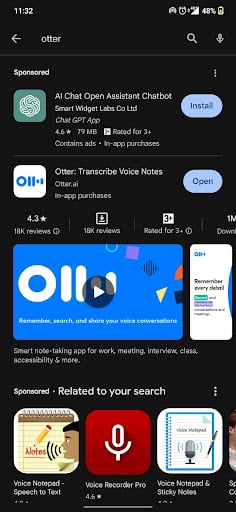
Otter is available to iOS users via the Apple App Store.

3. Record or import files
Otter allows you to record audio files directly from the dashboard. To do this, ensure you’re logged in to your Otter account.
Press the record button on the top right corner of the homepage.

Otter will request permission to use the microphone. Click the Allow button to proceed.

Once you’ve granted permission, Otter will direct you to the note-taking page, where it will start recording your audio. You can pause, resume, or stop the audio recording from this page.
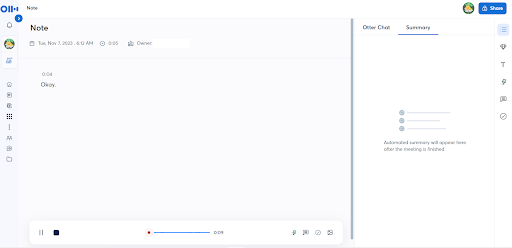
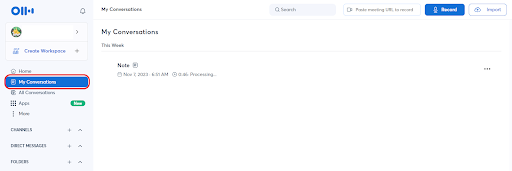
You can access and manage all audio recordings from the My Conversations tab.
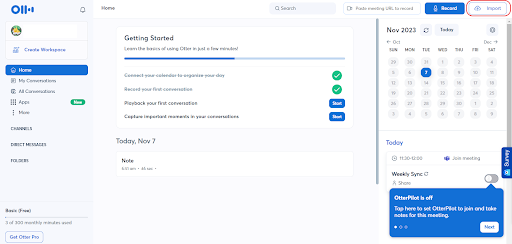
Otter also allows you to import audio or video files and transcribe them. To do this, navigate to your Otter dashboard and press the Import button on the top right corner of the webpage.
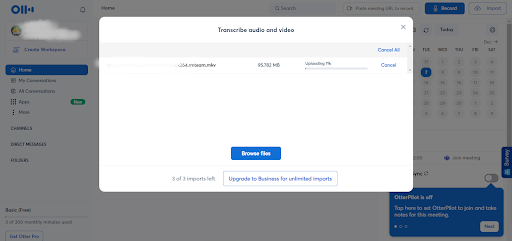
You should see the following pop-up on your window. You can drag and drop files or browse and select files on your computer.

Currently, Otter supports MP3, AAC, M4A, MPEG, MP4, WMV, and MOV file formats. Once you’ve selected a file, Otter will automatically upload the file to a cloud server.
If the upload is completed successfully, Otter will transcribe the file.
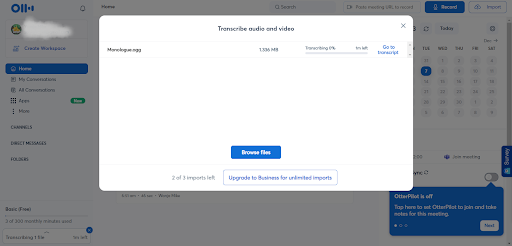
You can access the transcript by pressing the Go to transcript button.

Here’s how the transcript from the uploaded audio looks like:

4. Review and edit transcripts
Otter allows you to edit transcripts and ensure they’re accurate. For example, you can correct spelling and grammatical errors, delete certain phrases, change punctuation, add paragraph breaks, or change speakers.
To get started, navigate to the My Conversations tab to access your transcripts and recordings. Select a transcript to proceed.

Once you’ve selected a transcript, you’ll be directed to the following page. Press the Edit button to start editing the transcript.

Edits made to the transcript are saved automatically, ensuring you don’t lose any data.

5. Share transcripts
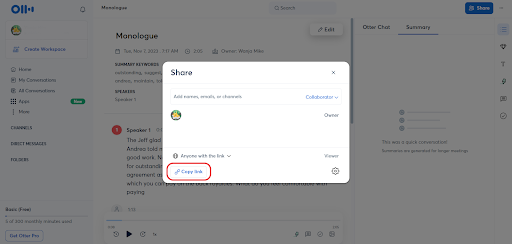
Otter allows you to share your conversations or transcripts. To do this, navigate to the transcript you wish to share and click the blue Share button at the top right corner of the page.

In the pop-up window, add the names or emails of the people you wish to share the transcript with.

Note: For this sharing option, any email you add must have an associated Otter account to view the shared transcripts.
You can also assign an individual with collaborator or viewer tags. By default, collaborators can edit and modify Otter conversations, while viewers can only download the transcript. You can change these permissions by clicking the account settings icon on the pop-up window—and unchecking the following checkboxes.

Another way to share transcripts is via a public link. For this option, click the Copy link button to generate a shareable link. You can then use third-party tools like Gmail and Slack to send the link to your colleagues.
Otter pros and cons
Otter has several advantages, but it also has limitations that can affect its implementation.
Pros
- User-friendly. Otter features an intuitive interface that’s easy to master, even for beginners.
- Multiple integrations. Otter can be integrated into all major meeting platforms, including Google Meet, Microsoft Teams, and Zoom.
- Cross-platform. Otter can be used on Android, iOS, Mac, and Windows devices. It also works in web browsers like Chrome and Microsoft Edge. This allows you to hold virtual meetings and access transcriptions from different devices.
- Cloud storage. Otter automatically stores recordings and transcripts. This storage feature allows you to access your data from any device and location.
- Wide use cases. Otter has numerous features, including speaker identification, real-time transcription, custom vocabulary, and search and keyword filtering. It can be used by students, teachers, salespeople, and journalists.
Cons
- Expensive. The Pro and Business plans charge per user, which can be costly, especially for large teams.
- Limited languages. At the moment, Otter is only capable of transcribing English content.
- Slow uploads. It may take a while to upload local audio files to the cloud using Otter.
- Inaccuracy. Just like other AI tools, Otter can make mistakes during transcription. You may have to review and edit the transcripts to ensure they are accurate.
Who can benefit from using Otter?
From students to customer service representatives, let’s explore how individuals can use Otter in their workflows.
Students
With numerous classes to attend, Otter can benefit students by helping them take notes in virtual lectures. Otter can automatically join online class meetings and record them on platforms like Zoom, Google Meet, and Microsoft Teams. Students can also use Otter’s mobile app for Android or iOS to record lectures and transcribe study notes.
Otter allows students to add captions, insert images in transcripts, and generate key takeaways. They can also quickly search transcripts and identify specific information.
Journalists or writers
Journalists and writers operate in a fast-paced environment that requires attention to detail. Otter can help them transcribe interviews and meetings quickly. These professionals can also use Otter’s time stamps and speaker identification features to track who said what.
Content creators
Otter can help turn conversations into captions and subtitles. Users can export transcripts into SRT file format—commonly used to create subtitles. As a result, content creators can extend the reach of their video or podcast content by making it accessible to a wider audience, including those who might prefer reading or have a hearing impairment.
Content creators can also import audio and video files into the Otter workspace for transcription. The transcribed content can be used to create blog posts, social media updates, or e-books.
Customer service teams
Customer service teams can also benefit by using Otter’s transcription service to analyze customer interactions. They can identify ways of improving their service delivery and enhancing business strategies.
Otter allows customer service representatives to record customer calls or meetings—with their consent—and use the content for transcription, training purposes, quality assurance, or data analysis.
Get help with transcription on Upwork
Otter is an AI meeting assistant that can enhance your productivity. It’s capable of transcribing audio files in different formats and storing the transcribed content on the cloud, where you can access it from anywhere.
Otter can also join online events on platforms like Zoom and Google Meet automatically and take meeting notes in the background, allowing you to focus more on the discussions.
However, Otter can make mistakes. It can also perform poorly in videos with significant background noise or speakers with different accents. Human oversight is required to review the generated outputs to ensure they’re accurate and meet standards.
Consider working with transcriptionists on Upwork to help you harness the power of artificial intelligence in your workflow. If you’re an expert looking for work, Upwork can connect you to transcription jobs to help you build your portfolio and earn extra income.
Upwork is not affiliated with and does not sponsor or endorse any tools or services discussed in this article. These tools and services are provided only as potential options, and each reader and company should take the time needed to analyze and determine the tools or services that would best fit their specific needs and situation.
Prices are current at the time of writing and may change over time based on each service’s offerings.

.avif)

Author Spotlight

Upwork is the world’s largest human and AI-powered work marketplace that connects businesses with independent talent from across the globe. We serve everyone from one-person startups to large organizations with a powerful, trust-driven platform that enables companies and talent to work together in new ways that unlock their potential.