Project Management for Freelancers: Master Your Schedule and Pipeline
Whether you’re a new freelancer or are experienced, a project management system can improve your productivity and profitability. Here’s how to get it started.

.png)
.avif)
You’ve started freelancing. And things are going well! But the work is also starting to feel a little out of control—to the point you don’t think you’ll ever clear out your email inbox. Or maybe you woke up in the middle of the night in a sweat, wondering if you marked down a client due date correctly.
All of this is normal, but not sustainable for the long term. When your freelance workload begins to feel hard to juggle, this is a sign that you need a project management system. You don’t have to wait until things feel out of hand, either. The earlier you can start your project management system, the better.
Whether you’re a brand-new freelancer starting to feel the schedule crunch or you’ve been freelancing for years, you can benefit from learning how to fine-tune your approach to project management.
What is a freelance project management system?
A freelance project management system is a way to keep track of client communications, project progress, and more. These systems usually include solutions for:
- Project tracking and task organization. At minimum, you’ll want your project management app to support creating different projects. Ideally, these projects will support task management and prioritization, so you can create checklists that are specific to different deliverables.
- Capacity planning. A tool for capacity planning or resource management is helpful, too. These tools typically allow you to assign expected work hours to different projects and tasks, then compare the total workload against your weekly maximum. For example, I limit my client work to 30 hours per week. This allows me to have enough time to handle business admin tasks and address any unexpected items that pop up.
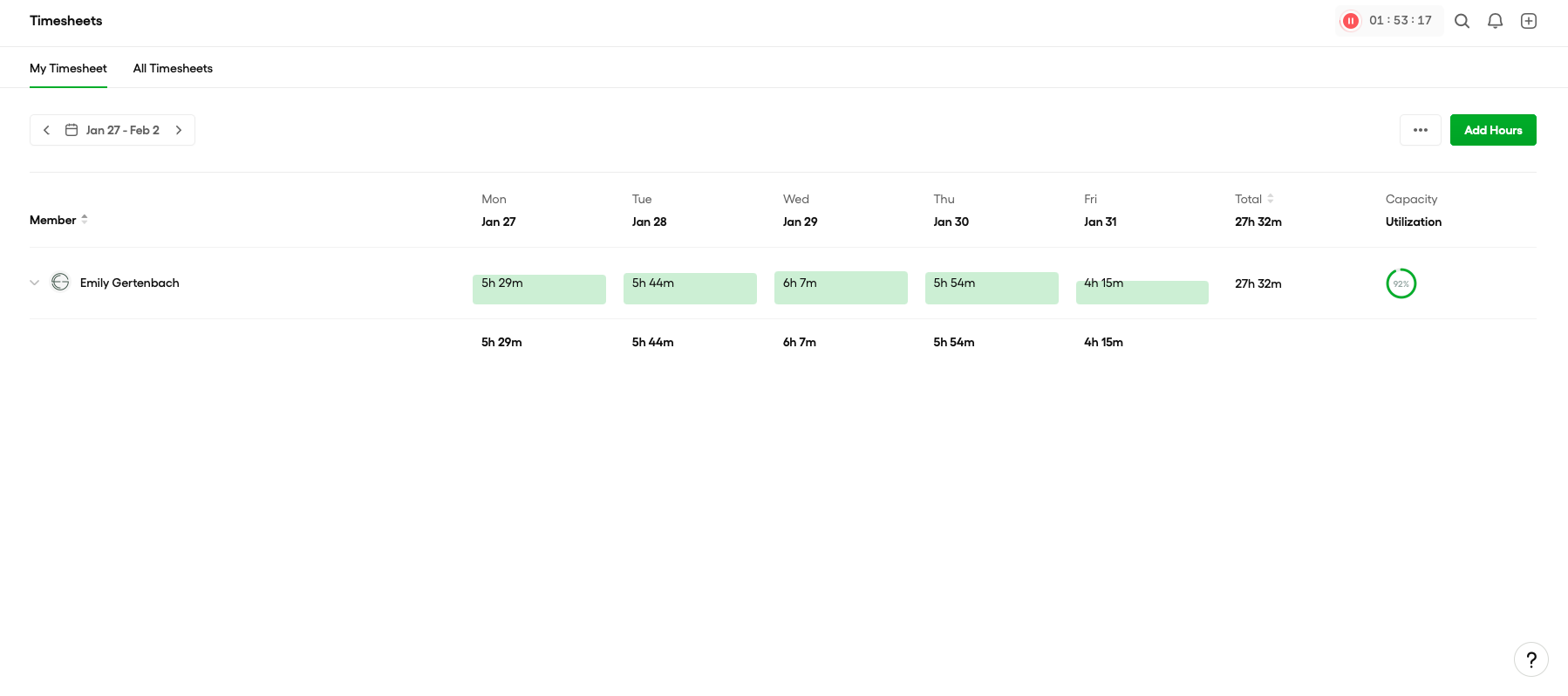
- Time management. Time tracking is essential for establishing your baseline capacity and then keeping your project schedule within reasonable limits. Tracking every minute I spend on work—whether it’s for a billable client project or not—has been the single most valuable project management effort I’ve made.
- Contact management. Lots of project management programs also include a basic customer relationship management (CRM) tool so that you can keep track of client or subcontractor contact information. It’s nice to have this all in one spot versus hunting for a phone number in an email signature.
Project management systems that are built with freelancers in mind may also include tools to:
- Make contracts and invoices. If you’re working with clients on Upwork, then contract management and invoicing is done for you. When you work with a client that’s not on Upwork, though, you’ll want a way to create a contract and collect payment when work is done. Folding this into your project management system is convenient, but it’s perfectly fine to use a separate invoicing or document signing system.
- Track expenses. Again, this doesn’t need to be part of your project management system—many freelancers like to use QuickBooks, for example. Either way, you’ll want to have a way to track expenses related to your work and projects.
- Create client portals. This is a matter of personal preference, but some freelance project management software programs let you create client portals through which you can communicate and share documents.
- Build workflows. Many of the best project management software tools allow you to create workflows that streamline repeat actions. For example, when you mark a task complete, the app might automatically update a stakeholder or send an email to key collaborators.
Do solo freelancers need a project management system?
Yes! You don’t need a team to benefit from a project management app. Outside of occasionally hiring a freelancer on Upwork, I work on my own, don’t manage team members … and I’ve seen productivity benefits from implementing a project management system.
The trick is to find a project management solution that offers the features you need without going overboard. Many popular project management apps like Asana are built with teams in mind. You can use these tools as a solo freelancer, but you’ll need to modify their settings to better suit an individual workflow.
If you find that you like configuring an app to meet your needs, then you may want to try building your own project management system from scratch in Notion or Airtable. These apps use databases to organize information, and you can create fully customized dashboards that display all manner of business metrics.
What if you can’t find a project management app that works?
Building an effective project management system isn’t just about picking an app. There’s a mental component to freelance project management, too.
I’ve been freelancing for twenty years, but this wasn’t my full-time job until 2019. When I went from having one freelance client at a time to a list of several, I started to feel overwhelmed. My clients wanted to communicate in different ways, emails were coming in at all hours of the day, and my calendar was packed with due dates and meetings.
At first, I tried a bunch of different apps. I created forms in Airtable, tracked client communications with Gmail extensions, and used a well-reviewed expense-tracking platform. Instead of feeling some measure of control, I only felt more and more overwhelmed.
Ultimately, I had to change my mindset around project management.
While I work with clients, I’m running my own business. This means that I get to set parameters for how I work, when and in what apps I communicate, and how I build out my schedule. Once I had this mindset, and felt more confident in communicating my project guidelines to clients, I was able to find tools that I could adapt to my preferred workflows.
Today, my project management system is built around two core apps: Slack and Bonsai. Keeping all of my client communication in Slack allows me to “turn off” work more easily at the end of every day—and I like that the app lets me set reminders and pin documents. I even get notifications in Slack when a client comments on a shared Google Doc.
Bonsai, on the other hand, is where I handle every other aspect of running my business including sending invoices to clients who aren’t on Upwork, logging expenses, planning my weekly tasks, and tracking my time.
Is project management helpful if freelancing isn’t your only job?
You can still benefit from a project management system if freelancing is your side hustle.
If you work a full-time job in addition to freelancing, it may be helpful to see your “day job” and freelance tasks all in one spot. Just make sure to not compromise the privacy of either job! This may mean you need to add work projects into your freelance project management app or block off time on your work calendar when you know you’ll need to focus on freelance.
If your full-time job is being a parent or caretaker, you could add your kids and family members as “projects” in your project management app of choice. It might feel a little silly creating a project for your child, but this will let you add recurring appointments, to-do items, and even important contact details into the same system that you use for managing client work.
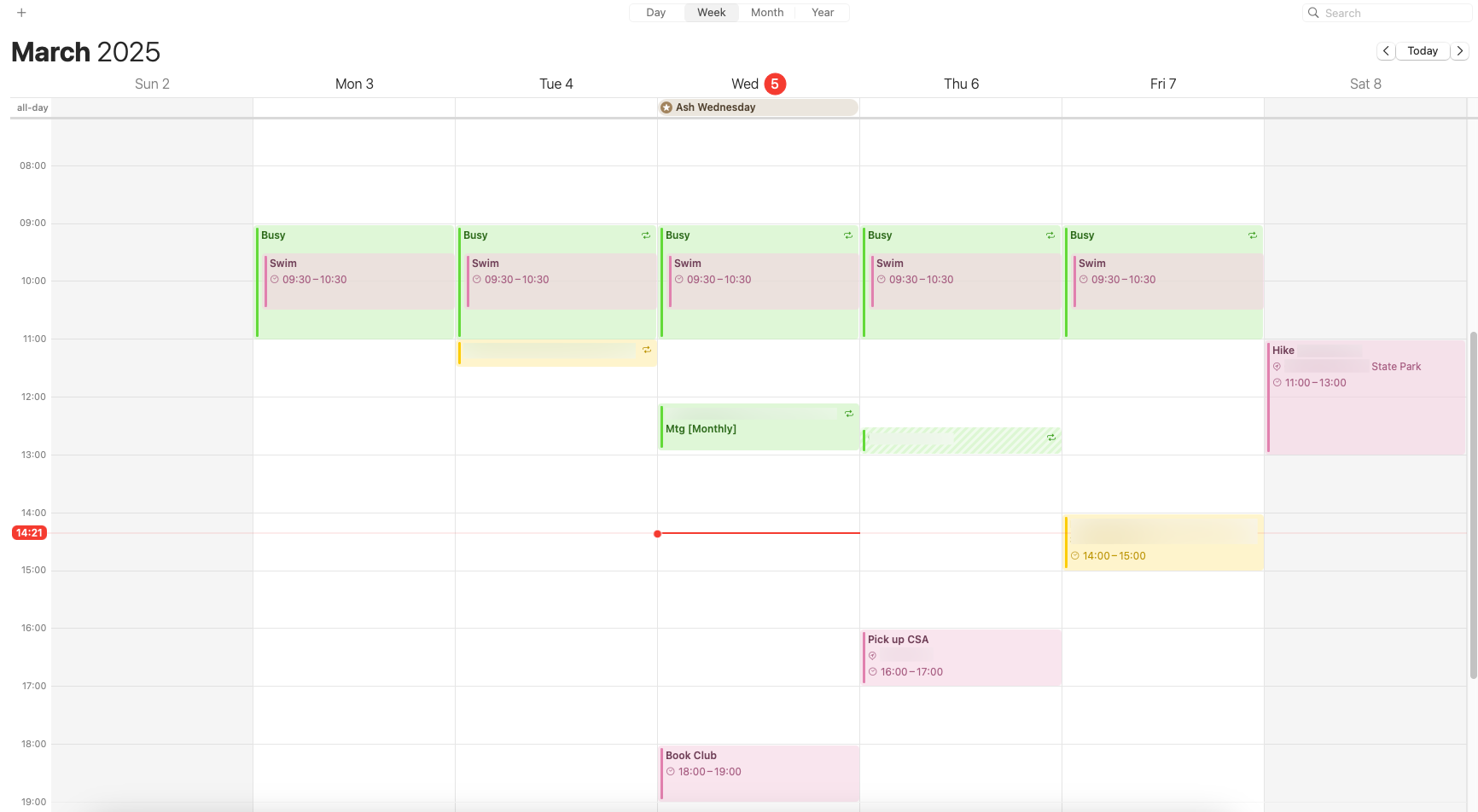
Much of this comes down to personal preference. I prefer to keep my work and personal life tasks separate—though I do connect different color-coded calendars to my iPhone and MacBook. This allows me to see client and life events side by side … but when I open up Slack or Bonsai, I’m strictly in “work mode.”
The 10 best project management tools for freelance work
The project management software on this list includes tools well-loved by many freelancers I know. Many of these apps have a free version or offer different pricing tiers based on the functionality you need, too.
1. Notion
Notion is a document-and-database platform that lets you write up docs, create spreadsheets, build project planning dashboards, and more. The app is versatile, but can have a steep learning curve. That said, there are a lot of resources available online, and Notion is a good choice for people who want to track personal tasks and goals alongside their work milestones.
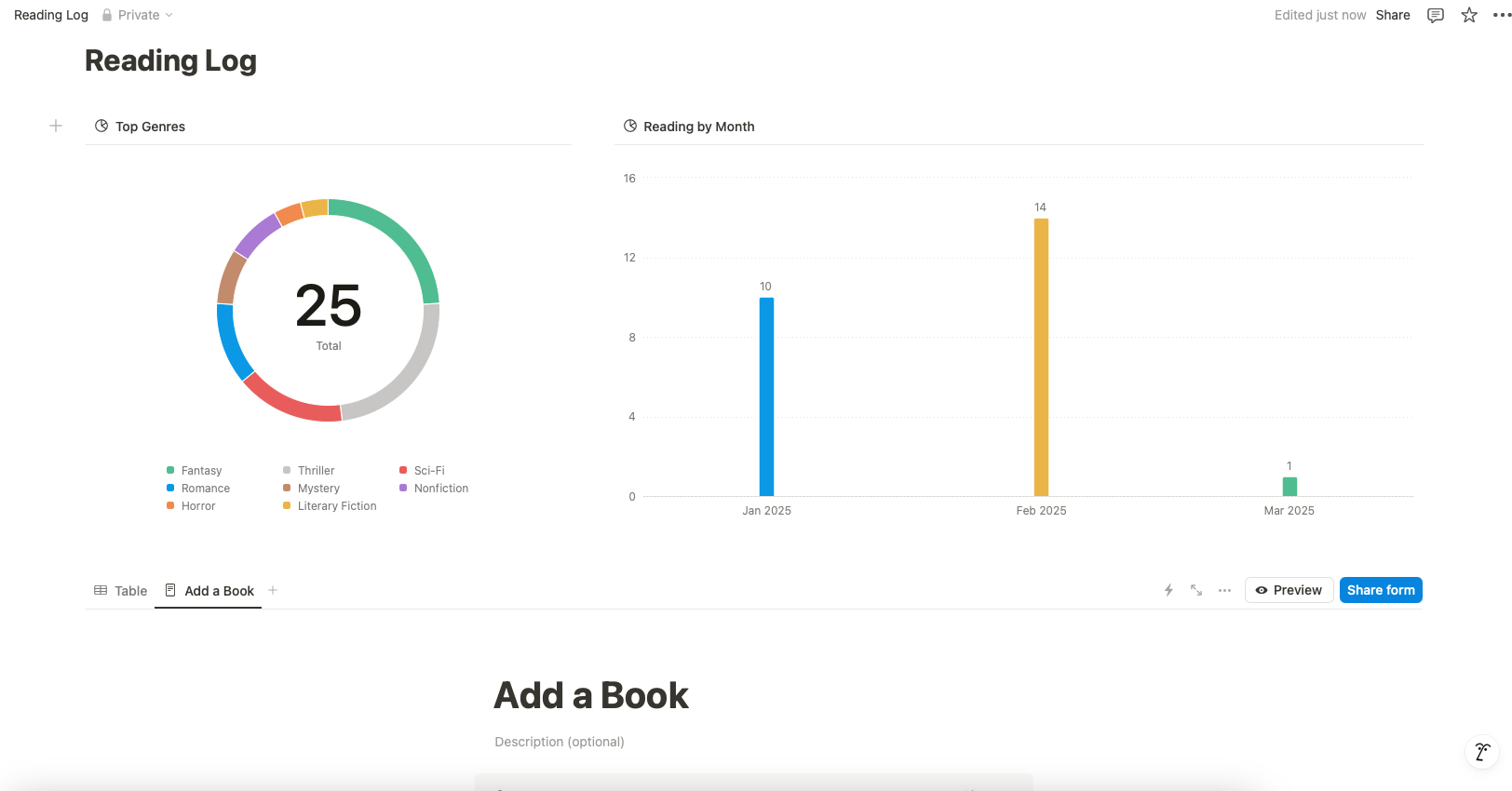
Key features:
- Private and collaborative document options
- Lots of templates available through Notion and third-party marketplaces like Creative Market
- Optional Notion AI add-on (for $8 per month, billed annually)
Notion is free to use. Some features, like dashboards, require a subscription starting at $10 per month.
2. Airtable
Airtable is similar to Notion in that you can use it to create databases and view that information in different ways. While I no longer use Airtable for my freelance projects, I do use the mobile app to monitor the health of my beehives, which just goes to show that you really can adapt Airtable for almost any need.
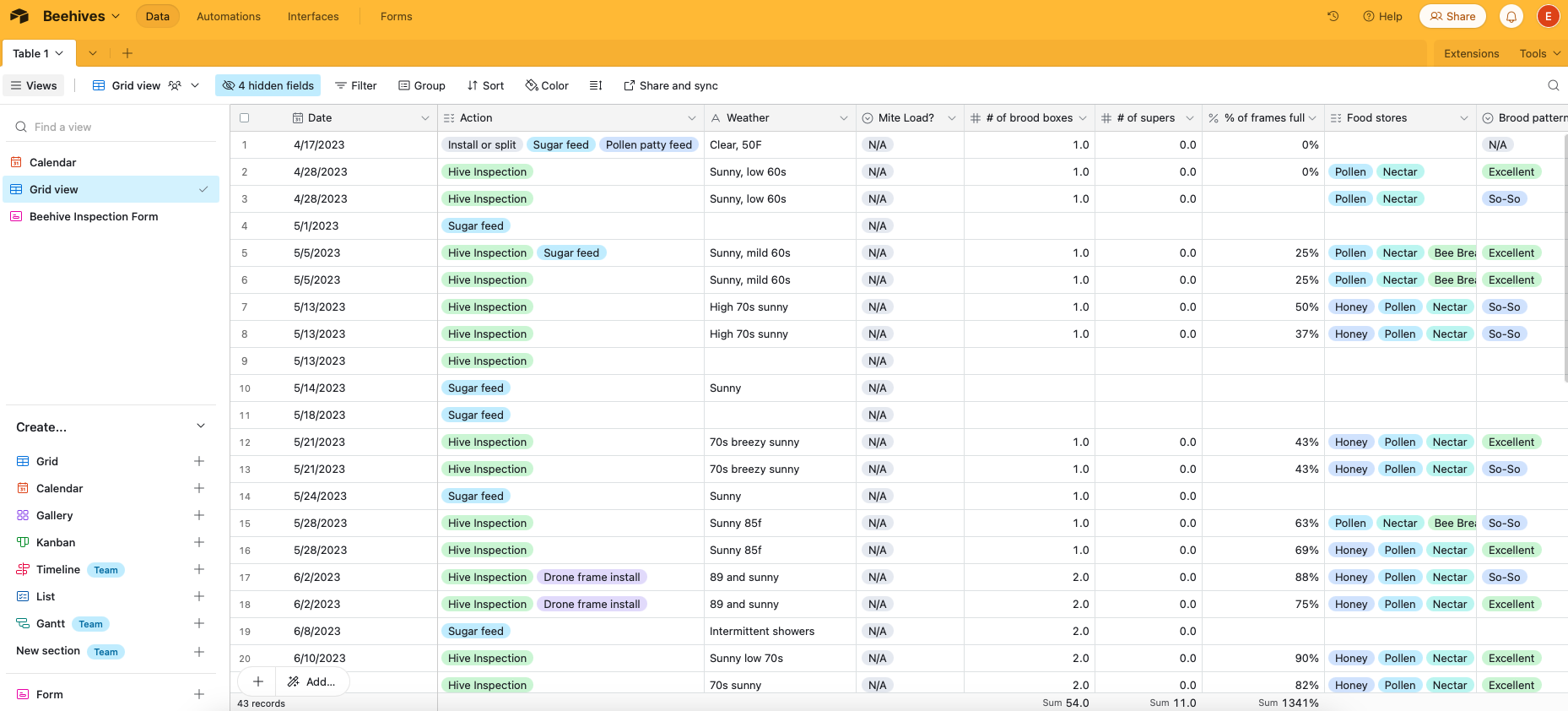
Key features:
- Multiple document views
- Mobile-friendly forms that update existing databases
- Built-in automation workflows
Airtable is free to use with some restrictions on the amount of info you can enter into any database. You can unlock higher usage limits for $20 per month (billed annually) and up.
3. Google Sheets or Microsoft Excel
You don’t need a purpose-built app to create a project management system. There’s nothing wrong with using tools already at your disposal. If your project workload is fairly light, and you don’t need an expense tracker or CRM, you may find that a simple, user-friendly spreadsheet does the trick.

Key features:
- Pre-built templates are available in apps like Google Sheets
- Complete control over customization
- Often included with your computer or email account
4. Streak
Streak is technically a CRM, but you can use it to track projects as they move through different stages. For example, you could track the process of a lead turning into a signed contract, then track the project from initial meeting to delivery. Everything happens in your Gmail account, too, so Streak is great for people who like to work out of their inbox.

Key features:
- Works inside of Gmail
- Fully customizable pipeline and project tracking stages
- Projects connect to contacts and related tasks
Streak is a paid product; plans start at $49 per month (billed annually) on top of your Google Workspace subscription.
5. Trello
Trello is an easy-to-use project management tool that is built around the Kanban system. Simply move project cards between status columns to track your progress. You can add subtasks to projects, too. This is another good app for people who want to manage personal and work tasks, as you can create multiple “boards” for the different parts of your life.

Key features:
- Kanban and calendar views available on all accounts
- Task and subtask management
- Generous free plan
Trello is free to use with some limitations; you can unlock advanced customizations and other features for $5 per month (billed annually) and up.
6. Asana
Asana shares some similar features with Trello, including drag-and-drop Kanban boards and subtask management. We use Asana to track Upwork content team projects and it’s very easy to tag other collaborators and attach Google Drive files to tasks.

Key features:
- Generous free plan
- Lots of app integrations
- PDF and CSV export options
You can create unlimited projects and tasks for free when using Asana. Paid plans start at $10.99 per month (billed annually) and offer additional features like Asana AI.
7. Bonsai
Bonsai is a project and small business management tool for freelancers. You can use it as a solo freelancer or an agency owner. The platform isn’t as well suited to tracking personal tasks as some of the other apps on this list—but does include solutions for billing, contract management, team scheduling, and more.
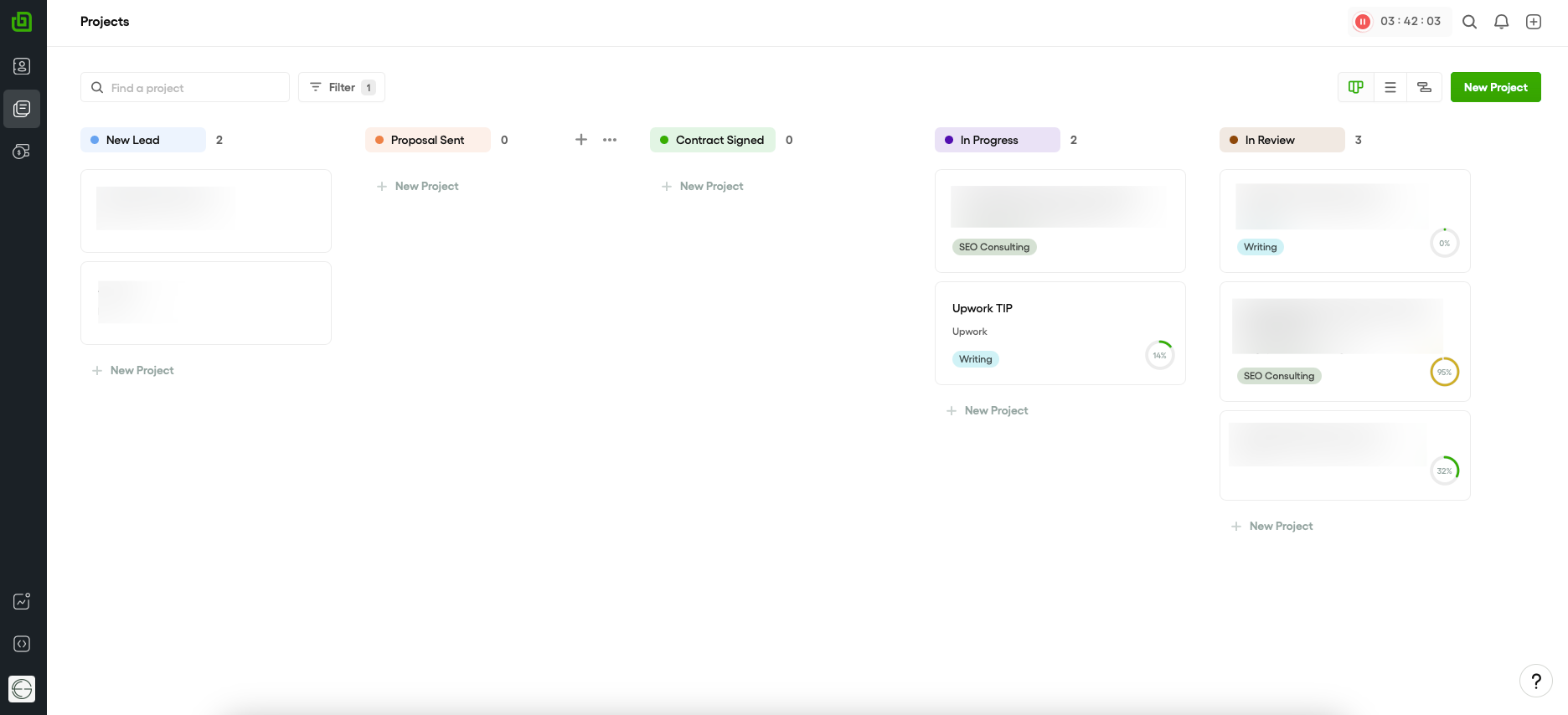
Key features:
- Contains all core tools needed to manage business projects and finances
- Easy time and financial report generation
- Optional client portals
Bonsai plans start at $9 per month when billed annually.
8. ClickUp
ClickUp is another all-in-one app for managing different aspects of your freelance business. While Bonsai is more focused on the client management and contract side of things, ClickUp takes a Notion-style approach with project boards, documents, AI tools, chats, and digital whiteboards.
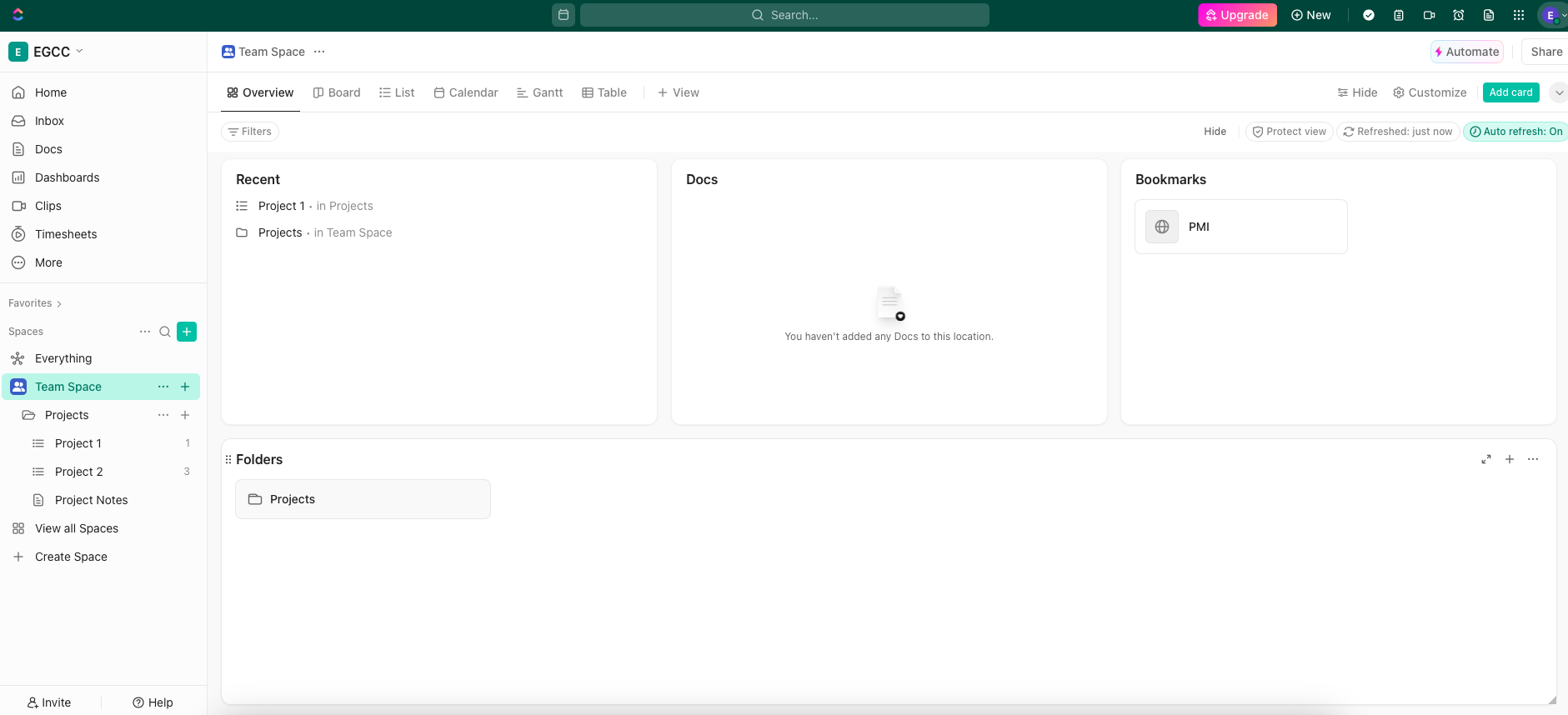
Key features:
- Project dashboards
- Kanban boards, Gantt charts, and more
- Built-in screen recording tool similar to Loom
ClickUp is free to use with some storage limitations. To unlock unlimited storage and AI features, you’ll need a paid plan. Options start at $7 per month (billed annually).
9. Moxie
Moxie is an all-in-one platform for freelancers and business owners. The app shares many similar features with Bonsai, including tools for project management, invoicing, time tracking, and contracts.

Key features:
- Meeting scheduler tool
- AI project assistant
- Client portals
Moxie plans start at $10 per month.
10. Wrike
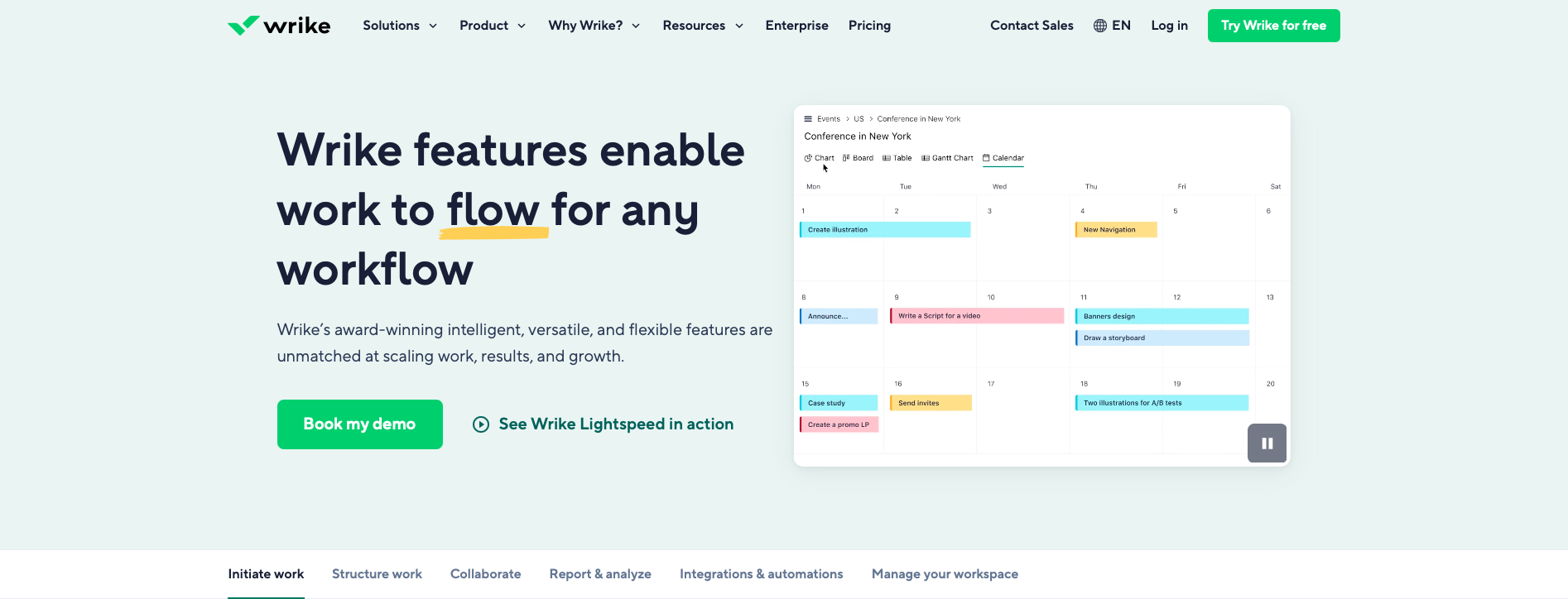
Wrike is another highly customizable system for building project-tracking dashboards and workflows. It’s built with the Agile methodology in mind, and is best suited for people who want to track work projects separately from personal tasks.
Key features:
- Kanban, Gantt, table, and calendar views
- Automation workflows available on select plans
- Document proofing and approval tools
Wrike is free to use, but you’ll need a paid plan if you want to unlock its full automation power. Plans start at $10 per month.
Tips for getting the most out of a freelance project management system
When you first start using a new freelance project management app, you might be tempted to customize every single aspect. This can quickly lead to spending all of your time making the app “perfect”—not focusing on your growing client to-do list.
Instead, set up just the core features you need in the app. In Asana and Trello, this may be creating a board or workspace to log your project tasks. In Bonsai and Moxie, this may look like setting up client profiles, then adding projects and subtasks.
If you aren’t sure where to start, try:
- Creating contact status columns or labels including new lead, contacted, proposal sent, contract signed, lead won, and lead lost.
- Setting up project status labels like pending, in progress, under review, and complete.
- Customizing your time tracker with hourly rates, billable status, and client project names.
- Setting your capacity for the week including total hours you want to work. Each time you add a new task, assign a time value that will count against your total.
- Building basic workflows and reports—if you know you send out client updates every Tuesday, add a recurring task and schedule an automatic report download if your app supports this feature.
As you begin using the app in your everyday workflow, you’ll discover more features, identify what you find most useful (or not), and begin developing a labeling system that works for you and your schedule. You’ll also begin to see how many insights you can glean from tracking your time and projects, like:
- How your estimated project time stacks up against time logged
- If a client tends to pay late or frequently requests extensions
- How much of your time is spent on administrative tasks every week
- Which projects are the easiest and fastest for you to complete
Build up your project pipeline with Upwork
To get the most out of your new project management app, though, you’ll need a steady flow of leads and work! You can keep your project pipeline up to date by sending proposals and offering consultations on Upwork. With access to tools like Uma™, Upwork’s Mindful AI, talent badges, and Upwork Messages—plus Hourly Payment Protection—you can get noticed for your skill and safely build relationships with great clients. Log in or sign up for Upwork to get started.
Upwork is not affiliated with and does not sponsor or endorse any of the tools or services discussed in this article. These tools and services are provided only as potential options, and each reader and company should take the time needed to adequately analyze and determine the tools or services that would best fit their specific needs and situation.

.avif)

Author Spotlight

Emily Gertenbach is a B2B writer who creates SEO content for humans, not just algorithms. As a former news correspondent, she loves digging into research and breaking down technical topics. She specializes in helping independent marketing professionals and martech SaaS companies connect with their ideal business clients through organic search.