What Is GitHub Copilot? A Comprehensive Guide
Discover what GitHub Copilot is, how it works, and its benefits in our comprehensive guide. Perfect for developers of all levels.

.png)
.avif)
Software plays an integral role in nearly every industry, supporting functions like accounting, logistics, and customer relationship management (CRM). Development tools have seen gradual improvements over the years, including features like test automation and continuous integration, that help streamline the coding process.
In the last couple of years, AI-assisted programming has become capable of offering developers code suggestions and troubleshooting tips. GitHub Copilot is a premiere example of a programming tool assisted by generative artificial intelligence (AI). It serves as a coding assistant by offering code suggestions and real-time code generation directly within the developer’s editor.
What is GitHub Copilot, and what makes it an AI pair programmer? This guide will help you understand what GitHub Copilot is, its benefits, and how to make the most of it.
What is GitHub Copilot?
GitHub Copilot is an AI coding assistant that integrates into a programmer’s development environment. It uses generative AI technology to help developers write code, troubleshoot errors, and streamline the development process. It was publicly announced for technical preview on June 29, 2021, through a collaborative effort between GitHub, Microsoft, and OpenAI.
The AI model underpinning GitHub Copilot is the OpenAI Codex, which was developed from the same GPT-3 model that ChatGPT-3 was based on. However, the OpenAI Codex and ChatGPT were optimized for different purposes.
Where ChatGPT was developed as a generalized chatbot, the OpenAI Codex was trained on more source code to make it a more efficient tool for software developers. Notable features of GitHub Copilot include code completion, function writing, unit test creation, and adding comments to programming code.
To enhance its functionality, GitHub introduced an updated version known as GitHub Copilot X, which featured early adoption of OpenAI’s GPT-4. This iteration introduced Github Copilot Chat and terminal interfaces. With GitHub Copilot X, developers can engage in a chat within Visual Studio, leveraging GPT-4’s capabilities to discuss their projects.
How does it work?
GitHub Copilot is powered by the OpenAI Codex, which was originally built on the GPT-3 large language model (LLM). GPT-3 is a generative technology that uses the transformer architecture.
The transformer architecture is a machine learning framework designed to handle sequential data, which makes it capable of processing and generating text or code based on the input it receives. The training of the OpenAI Codex involved collecting large amounts of information, including source code, to create a training set.
The model was then trained on this data to recognize patterns in the text. When users input a prompt, the model matches that with patterns it recognizes from its training. It then applies statistical algorithms that allow it to predict a word, phrase, programming code, or other structured data that a user would accept.
Having been exposed to extensive amounts of source code repositories during training, GitHub Copilot can assist developers in writing programming code, designing algorithms, applying best practices, and creating data structures.
An integral aspect of GitHub Copilot and other generative AI tools is the process of continuous learning. The Copilot extensions allow developers to provide feedback on the generated code. While GitHub Copilot doesn’t learn from individual interactions to personalize the model to a user’s code, the collected feedback can improve the model for all users over time.
Features of GitHub Copilot
GitHub Copilot can provide valuable assistance to developers. We explore some of its main features.
- Code suggestions. One of the prominent features of GitHub Copilot is code suggestions. The autocomplete tool can complete a line of code you’re working on or write whole functions based on comments in your file.
- AI-powered assistance. Copilot aids in code writing, helps format code, ensures proper syntax, and assists in error correction without the need to exit your code editor.
- Editor integrations. Copilot simplifies AI usage for developers through its integrations. Unlike the process of tabbing between screens to copy and paste code when using ChatGPT, Copilot integrates directly into Visual Studio Code (VSCode), Visual Studio, JetBrains, and Neovim, providing a more streamlined workflow.
- Public code usage. Trained on public code repositories, Copilot can offer relevant and accurate suggestions across common programming languages like Python, JavaScript, and C++. However, if you’re in a regulated environment, ensure Copilot’s usage aligns with organizational and regulatory guidelines.
- Chat functionality. Copilot features a chatbot built directly into the developer’s environment. The chat function allows you to ask questions about the code on the screen, seek suggestions or changes, debug errors, and engage in natural language queries to enhance your coding experience.
- Copilot Enterprise. Copilot Enterprise offers additional features tailored for larger teams and organizations. It includes advanced tools for maintainers, such as command line (CLI) support, APIs for custom integrations, and pull request optimization, ensuring a seamless development experience.
Benefits and limitations of GitHub Copilot
We explore some benefits and limitations of using Copilot.
Benefits
Developers can experience several benefits when using Copilot, including:
- Increased productivity. Writing code isn’t always the most time-consuming part of being a developer—it’s often coming up with the right solutions to problems, and that takes time. Copilot streamlines this process by offering code suggestions that serve as a starting point for problem-solving, reducing the amount of boilerplate code needed to start coding from scratch.
- Time savings. Copilot can enhance productivity by reducing the time developers spend searching for answers on Google, debugging errors, and devising solutions—enabling quicker delivery of work.
- Better code quality. While Copilot can offer suggestions for code improvements and identify potential security issues, the ultimate quality of the code relies on the developer’s expertise and thorough code reviews. However, Copilot can be a valuable tool in the initial stages of code writing to help improve quality.
- Education. Copilot can also explain unfamiliar code and suggest new approaches. While it’s a handy tool for learning new programming ideas and techniques, it should be used alongside other educational resources for a comprehensive understanding.
Limitations
While Copilot has many benefits, there are some drawbacks. We explain what to look out for when using Copilot.
- Code accuracy. Copilot does a great job producing workable code—but it isn’t perfect. The AI predicts code based on patterns observed during training and the context provided, but it can’t understand the problem at hand. The AI's lack of understanding could result in incorrect or suboptimal code that might lead to issues if unnoticed.
- Privacy and security. Using Copilot involves sending code to a third-party server for processing. If your work involves proprietary code or sensitive data, this could pose a privacy or security risk. Obtain necessary approvals within your organization before using Copilot in your projects.
- Over-reliance on AI. AI-assisted programming can lead to an over-reliance on tools like Copilot, affecting hands-on coding and problem-solving skills. Developers should stay just as involved in the problem-solving process to keep up their skills and watch for potential errors the AI makes.
- Code bias. Copilot’s training data comes from a wide array of public repositories, some of which may contain poorly written code, or code that is biased toward a certain result. Code bias can affect Copilot’s output, potentially leading to incorrect or suboptimal code suggestions. Thorough code reviews can help reduce the risks associated with code bias.
How to use GitHub Copilot
Getting started with GitHub Copilot is a straightforward process. We explain the steps to subscribe to the service and install it in your integrated development environment (IDE).
1. Log into your GitHub account at github.com or sign up if you don’t have one.
2. Visit the GitHub Copilot website and sign up for a Copilot free trial or paid subscription with your GitHub account.

3. Open your VSCode editor on your local computer.
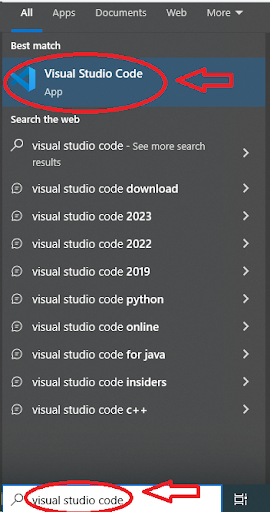
4. Click on the Extensions Menu on the VSCode sidebar.

5. Do a search for Copilot in the search bar, click on the GitHub Copilot option, and click Install.

6. Once installed, Copilot will ask you to authenticate your subscription and send you to the website address to activate the service in Visual Studio Code.
Installation for other IDEs is similar, so find the plugins section for those programs and perform the actions required there.
If you are working on a Windows environment, the setup process remains similar, but there are specific considerations:
1. Install Visual Studio Code for Windows.
2. Follow the configuration steps outlined in the tutorial section above.
3. Ensure that your environment variables and codebase are optimized for GitHub Copilot to function efficiently on Windows.
After activation, you can use Copilot to get development work done.
1. On installation, you’ll see a message instructing you to ask Copilot something.

2. In this case, let’s ask Copilot to create a function to add a + b. Copilot’s suggestion includes the function, documentation, code, and call to the function.

3. Continue experimenting with the Copilot functions to see everything else it can do. The Copilot documentation is also available for specific questions about usage.
After installation, it’s essential to configure GitHub Copilot to suit your workflow. Developers can adjust settings for code generation, select preferred languages, and choose whether to enable cloud-based optimizations for enterprise environments.
GitHub Copilot vs. traditional code editors
You may already have a productive workflow with your traditional code editor, so is investing in Copilot worth it?
For starters, let’s look at code completion.
Traditional editors often come with built-in snippet managers or extensions that allow developers to create, manage, and insert code snippets. These snippets are usually static and require manual creation and management.
In contrast, Copilot dynamically generates code snippets based on the context of the work, providing a more interactive and adaptive snippet experience. Its ability to suggest non-generic code snippets tailored to the current scenario can improve the help it offers coders.
GitHub Copilot is a tool made for individual developers, but it’s built using code from many people who shared their work openly. Such collaborations show how working together and sharing knowledge can make coding easier for everyone. Also, because Copilot’s suggestions often show widely accepted ways of coding, developers get immediate access to a vast repository of knowledge, and may also feel more connected to the larger community of coders.
The way GitHub Copilot is improving might encourage more people to share their code openly. When developers see how Copilot helps them by using shared code, they might want to contribute to open-source projects, too. That introduces more varied code for AI models like Copilot to learn from, making Copilot better over time and encouraging more sharing and teamwork in the coding community.
Use cases for GitHub Copilot
GitHub Copilot has several use cases that can benefit various development workflows:
- Real-time debugging. Instantly identify and fix errors in your codebase.
- Codebase optimization. Use Copilot to refactor and improve existing code structures.
- CLI integration. Automate routine tasks and enhance efficiency with command line capabilities.
- API development. Streamline the creation and testing of APIs within your projects.
- Pull request management. Ensure smoother code reviews and merges with Copilot’s pull request assistance.
GitHub Copilot FAQ
Still have questions about GitHub Copilot? Here are a few common questions people have.
What programming languages are supported for GitHub Copilot?
GitHub Copilot supports a variety of popular programming languages, including Python, TypeScript, Ruby, C++, and Rust. It also has support for less common languages, although the performance might not be as robust due to potentially limited training data from open-source code repositories.
GitHub Copilot can also assist with coding in various frameworks like Python’s Django web framework. However, if a framework has significantly evolved or was introduced after the last training cut-off, Copilot might not be able to provide accurate suggestions for that framework as it won’t have knowledge of any developments.
How does GitHub Copilot integrate with IDEs like Visual Studio Code?
GitHub Copilot is integrated into integrated development environments (IDEs) like Visual Studio Code through an extension. The Copilot team provides an extension that can be downloaded and installed on your local machine. You can search for the extension within Visual Studio Code and install it.
Once installed, GitHub Copilot automatically activates as you type code, offering suggestions to complete your code lines or even generate functions based on the comments and context within your code. The core features include code suggestions and code completion.
How does GitHub Copilot handle code completion and suggestions?
GitHub Copilot works beyond what a typical autocomplete does. It analyzes the developer’s request, the surrounding code, variable and function names, and other elements to understand the context of the situation and output the correct code.
It can do this because of the OpenAI Codex model. This model received training data from open-source software, so it can work with standard patterns in programming languages and can use those patterns to create functions, algorithms, and more.
How does GitHub Copilot integrate with IDEs like Visual Studio Code?
GitHub Copilot is integrated into integrated development environments (IDEs) like Visual Studio Code through an extension. The Copilot team provides an extension that can be downloaded and installed on your local machine. You can search for the extension within Visual Studio Code and install it.
Once installed, GitHub Copilot automatically activates as you type code, offering suggestions to complete your code lines or even generate functions based on the comments and context within your code. The core features include code suggestions and code completion.
How does GitHub Copilot handle code completion and suggestions?
GitHub Copilot works beyond what a typical autocomplete does. It analyzes the developer’s request, the surrounding code, variable and function names, and other elements to understand the context of the situation and output the correct code.
It can do this because of the OpenAI Codex model. This model received training data from open-source software, so it can work with standard patterns in programming languages and can use those patterns to create functions, algorithms, and more.
How can I integrate GitHub Copilot into my software development workflow?
Modern IDEs like Visual Studio Code have built-in functionality to install extensions like Copilot. VSCode has an extension manager that makes the installation process straightforward.
Once you’ve installed GitHub Copilot on VSCODE, accessing it is straightforward. It automatically provides code suggestions as you type, and you can also use keyboard shortcuts to trigger Copilot commands. This feature makes it easy to quickly get code suggestions from Copilot during your coding tasks, aiding in a more efficient coding workflow.
Is GitHub Copilot free?
GitHub Copilot is a paid subscription service. You’ll need to pay a monthly fee of $10 to gain access. However, it comes with a free trial if you want to try it before you buy.
A business subscription costs $19 per user per month. For this price, you get license management, policy management, privacy features, and proxy support.
For companies looking to tailor the platform to their workflows, the enterprise plan starts at $39 per user per month.
Get the most out of GitHub Copilot.
GitHub Copilots can streamline the development process, helping developers save time, increase productivity, write better code, and educate themselves. Copilot is also easy to install—with developers only needing to sign up, install an extension, and press a few keys to access the tool.
If you’re an experienced developer who wants to put their Copilot skills to use, browse Upwork’s Copilot jobs to find your next client. If you’re a business looking for experienced Copilot developers, browse Upwork to find your next GitHub CoPilot specialist.
Upwork does not control, operate, or sponsor the tools or services discussed in this article, which are only provided as potential options. Each reader and company should take the time to adequately analyze and determine the tools or services that would best fit their specific needs and situation.
Prices are current at the time of writing and may change over time based on each service’s offerings.

.avif)

Author Spotlight

Upwork is the world’s largest human and AI-powered work marketplace that connects businesses with independent talent from across the globe. We serve everyone from one-person startups to large organizations with a powerful, trust-driven platform that enables companies and talent to work together in new ways that unlock their potential.