What Is Docker Toolbox? How to Install + Top Docker Tips
Docker Desktop requires an updated operating system. However, Docker Toolbox provides an option for older versions of macOS and Windows.
.png)
.avif)
Docker Toolbox is for older Mac and Windows systems that don’t meet the requirements of Docker for Mac and Docker for Windows.
Docker recommends updating to the latest software like Docker Desktop, but if you can’t or don’t want to, installing Docker Toolbox still allows you to access important benefits of Docker, such as rapid deployment, improved scalability, maintainability, and compatibility.
This article discusses Docker Toolbox and how to install it on both Mac and Windows systems. We also highlight some of the top Docker tips to consider incorporating into your development environment.
Docker Toolbox basics
Docker is open-source software that allows developers to create, run, and maintain containerized applications. It facilitates the creation of Docker containers which are standalone, executable software packages that contain code, libraries, and other dependencies required to run an application.
Containers simplify the development and delivery of cross-platform applications. Although developers can create containerized applications without using Docker, the process can be time-consuming. The introduction of Docker Toolbox helps cover developers on unsupported platforms.
The following tools are included in Docker Toolbox.
- Docker Machine is used to run docker-machine commands.
- Docker Engine acts as the Docker daemon or base engine for running Docker containers. Docker daemon is a self-sufficient and persistent process for managing Docker objects like volumes, containers, images, and networks.
- Docker Compose is for running docker-compose commands. It can be used during development, testing, staging, and production.
- Kitematic helps automate the Docker installation process by providing a graphical user interface (GUI). This makes it easy for users to run Docker containers. Containers that aren’t available locally can also be downloaded from Docker Hub.
- Oracle VirtualBox is a virtualization software available for both Mac and Windows users. It allows developers to run multiple operating systems like macOS, Solaris, Linux, and Windows concurrently.
- Docker Quickstart Terminal is a pre-configured terminal for connecting to the Docker Daemon.
Docker Desktop vs. Docker Toolbox
Docker Desktop is a cross-platform application that allows users to develop and share containerized microservices and applications. It features a simple interface for managing images, applications, and containers on the host machine.
Docker Desktop eliminates the need to install a Command Line Interface (CLI) when performing complex actions. A CLI is a command line program that requires text input or instructions to execute different functions on different operating systems.
Docker Desktop also features tools like Credential Helper, Docker Engine, and Docker Compose. However, it differs from Docker Toolbox in several ways.
First, Docker Desktop is only supported on newer operating systems, such as Microsoft Windows 10 and 11 and macOS 10.15 or newer. On the other hand, Docker Toolbox can run on older Microsoft Windows and Mac systems.
Second, Docker Desktop operates on HyperKit rather than VirtualBox on Mac. HyperKit is virtualization software for Mac that uses the Hypervisor framework. It’s only available on macOS 10.10 and higher. Docker Toolbox relies on VirtualBox to support multiple operating systems.
Docker Desktop is also different from Docker Toolbox because it doesn’t use the docker-machine command to set up a virtual machine. The Docker Engine API runs on a Mac system at /var/run/docker-sock.
How to install Docker Toolbox
Before you can install Docker Toolbox, you’ll need to meet the following requirements.
For Windows users:
- Virtualization enabled
- Windows 7 or higher
- 64-bit operating system
For Mac users:
- MacOS 10.8 or newer
Installation requirements for Windows
Microsoft Windows is the leading operating system for both desktop and laptop computers. So, understanding how to install and set up Docker Toolbox on Windows is crucial. Below are the installation requirements for Windows.
- Check system properties. Before installing any software, it’s important to ensure that your computer meets the predefined requirements. Docker Toolbox requires Windows 7 or higher. You also need to enable hardware-assisted virtualization.
To check your computer properties, navigate to the Windows Search Box and type System Information.
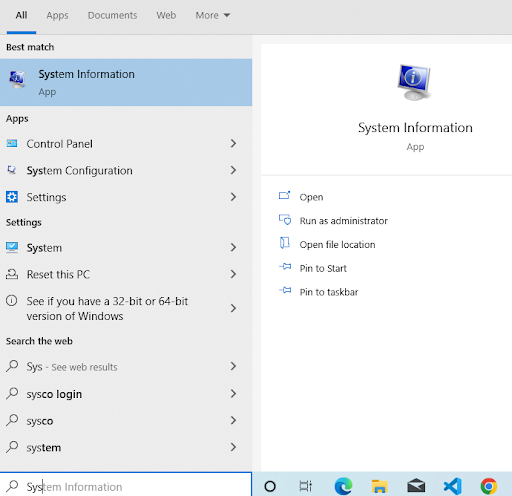
1. Open the System Information App to view your system properties.

2. Check virtualization status. To check if you have virtualization enabled, launch the Task Manager app and select the Performance tab. Under the CPU information, you’ll see whether you have virtualization enabled.

3. Download Docker Toolbox. If your computer meets the system requirements, download the latest version of Docker Toolbox from the Docker official website.
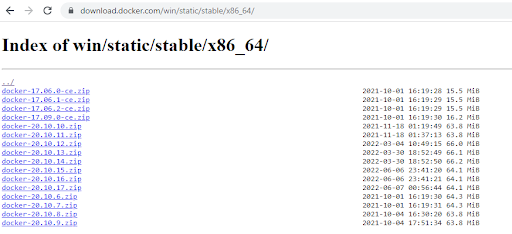
4. Launch the Docker Toolbox Setup Wizard. Once the Docker Toolbox.exe file download is complete, navigate to the folder where you stored the file (usually in the downloads directory) and right-click on the installer to open it.
You’ll see a pop-up security window asking whether you want to install the application. Click Yes to start the installation process.
The Docker Toolbox Setup Wizard will pop up, showing the version to be installed. Click Next to continue with the installation.

Next, choose the folder where you want to install Docker Toolbox. It’s a good idea to use the pre-selected default directory to avoid issues or bugs that might pop up later.

Select the default Docker Toolbox components and then click Next to complete the installation.

It’s recommended to accept the default values for the additional tasks shown in the window below.

Once you’ve verified that the right components have been selected, click on the Install button to complete the process.

5. Verify the installation. The last step is to ensure that the installation process was successful. Navigate to your desktop and check if icons for Oracle VirtualBox and Docker Quickstart Terminal are present.
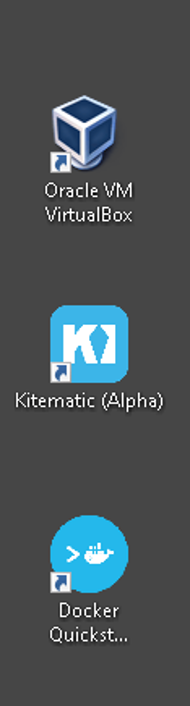
Click on the Docker Quickstart Terminal’s icon to launch an interactive command line.

In the Docker Quickstart Terminal, run the docker run hello-world command. You should see a Hello World output.
Installation requirements for macOS
For macOS users, follow the steps below to install Docker Toolbox.
1. Check system configuration. To access the macOS properties, navigate to the Apple menu and select About This Mac. If you have macOS version 10.8 or higher, you can proceed to the download and installation step.
If you have macOS version 10.10 or higher, it’s recommended to download Docker for Mac (which continues to be supported).

2. Download Docker Toolbox. Proceed and download Docker Toolbox for Mac from Docker’s official website.

3. Launch Docker Toolbox installer. Next, double-click on the Docker Toolbox installer and select Open. The Docker Toolbox installer will open, showing the introduction and overview sections.

Press the Continue button to access the Installation Type window.

Press the Install button to initiate the standard installation process. Note that the Docker tools’ binaries will be installed in the /usr/local/bin directory and made available to all users. Any existing VirtualBox installations will also be upgraded.
4. Provide your password. When you press the Install button in the Installation Type section, you’ll be prompted to enter your username and password.
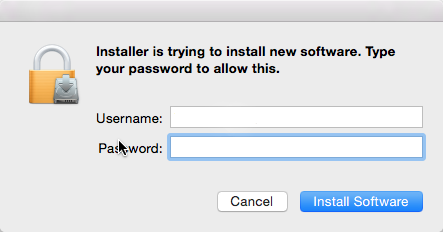
Enter the password, then click on Install Software. Once the installation process completes, you’ll be directed to the Quick Start section, which has several shortcuts to the Docker Toolbox components.
Click the Continue button to complete the installation.

The summary section will pop up, notifying you that the installation exercise was successful. Click Close to complete the installation process.

How to use Docker Toolbox
This section will discuss how to use Docker Toolbox on Mac and Windows.
How to use Docker Toolbox on Mac
After installing Docker Toolbox, follow the steps below to use it.
1. Start the Docker Quickstart terminal. On your computer open the launchpad and then search for the Docker Quickstart Terminal icon. Click on the Docker Quickstart icon to start the application.

2. Start initialization. When starting the Docker Quickstart terminal, you’ll see the following output.

In the above output, Docker has started a virtual machine and assigned it an SSH key. To start using commands, click on the terminal to activate it.
3. Run a Docker command. In the Docker Quickstart terminal, run the docker run hello-world command. You should see a “Hello from Docker” output. The message means that Docker Toolbox was successfully installed

How to use Docker Toolbox on Windows
Docker Engine isn’t supported natively on Windows because it requires a Linux kernel to execute certain commands. So, we need to use VirtualBox to install a Linux VM.
Below are the steps to get started with Docker Toolbox on Windows.
1. Launch the Docker Quickstart Terminal. On your computer, search for the Docker Quickstart Terminal icon and double-click on it to launch the application. You should see the following window.

The Docker Quickstart Terminal will prepare the development environment by downloading and initializing the required libraries. If a Boot2Docker file isn’t available in the c:/users directory, it will be downloaded from Github.
Once the development environment is configured correctly, you’ll see the following output in the powershell.

We’re now ready to run different Docker commands in the command prompt.
2. Clone a GitHub repository. We’ll use this voting application to see how we can access and run apps in containers using Docker Toolbox.

In your bash terminal, run the git clone command below:
git clone https://github.com/dockersamples/example-voting-app
The example voting app will be downloaded on your computer. Next, navigate to the directory where the app’s source code is stored.
3. Check the IP address. Run the docker-machine IP command in the Docker Quickstart Terminal to access your IP address. This is important because the containerized application will be hosted at the indicated IP address.
4. Start Docker Compose. In the example-voting-app directory, run the docker-compose up command to create the required volumes and containers. You should see the following output in your terminal.

Docker will download all the libraries that the application is using, including Python and Node packages. Use the docker images command to see which Docker images are hosted on your local machine.

5. Access the application. Open the Docker GUI to access all available images. Next, find the example-voting-app_vote image and click on the arrow above the web preview. You’ll be redirected to a browser window where the application is running.
Some of the most popular Docker container images can be found on Docker Hub.
Hire a Docker specialist or find work with Docker
Docker is one of the most powerful containerization technologies. As a result, Docker specialists are in high demand across the world.
Docker engineers are responsible for building and scaling containerized applications. These specialists are deeply involved in the continuous integration and deployment pipeline. They perform unit testing and source code analysis. If the application works fine, Docker specialists create and push images to the registry.
As a Docker developer, you may monitor logs in the containerized environment. This role ensures that all software bugs are identified and fixed appropriately.
There are hundreds of Docker-related roles and job opportunities on Upwork, the world’s human and AI-powered work marketplace. If you’re a Docker specialist, Upwork can get you connected to hundreds of potential clients or specialists. Find work as a Docker specialist through Upwork today.

.avif)

Author Spotlight

Upwork is the world’s largest human and AI-powered work marketplace that connects businesses with independent talent from across the globe. We serve everyone from one-person startups to large organizations with a powerful, trust-driven platform that enables companies and talent to work together in new ways that unlock their potential.