How To Add an Elementor Menu in WordPress Sites
Learn how to create an interactive navigation menu for WordPress using Elementor. Step-by-step guide for beginners and pros alike.

.png)
.avif)
A navigation menu is one of the most important components of a website. It helps users navigate to different pages or sections easily, enhancing the overall user experience. With Elementor, a leading WordPress website builder, you can create and customize navigation menus that are visually appealing, functional, and user-friendly.
In this article, we’ll provide a step-by-step tutorial on how to add an Elementor menu to WordPress sites, including tips on customization, responsive design, and advanced styling options. Whether you’re building a WordPress website for yourself or a client, this guide will help you master the Elementor Nav Menu widget.
Why a navigation menu is essential
The navigation menu organizes links to internal pages and provides users with a roadmap to your website. It’s noteworthy that poor navigation on a website is among the biggest WordPress mistakes and one that you should strive to avoid.
Great navigation enhances the user experience by making it easy for visitors to find what they need. A well-designed nav menu can also reduce bounce rates by encouraging users to explore additional pages and improve your website’s overall appeal with advanced styling options, typography, and animations.
The benefits of a good navigation menu
- Improved user experience. Simplifies site navigation and ensures users can quickly access key content.
- Lower bounce rates. Keeps visitors on your website longer by encouraging them to explore multiple pages.
- Enhanced design. Adds to the website’s aesthetics with customizable styles, hover effects, and typography.
Elementor, a popular WordPress page builder, makes it easy to create and customize navigation menus with tools like the Elementor Nav Menu widget, menu layout options, and mobile menu features.
Step 1: Create the menu in WordPress
Before adding a navigation menu using Elementor, you’ll need to create it in the default WordPress dashboard. Here’s how to get started:
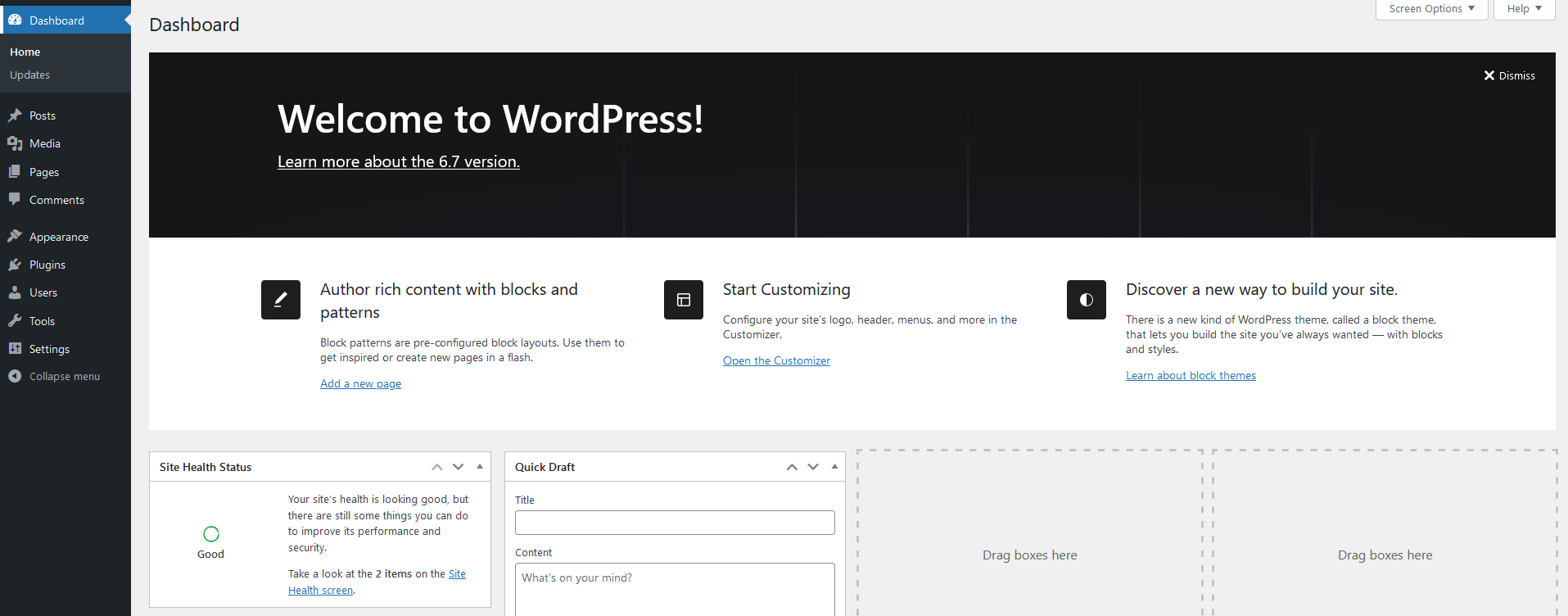
Open the WordPress dashboard
- Log in to your WordPress account.
- Navigate to the WordPress dashboard. If you’re new to WordPress, consider exploring tutorials and guides on how to build a WordPress website.
Create a new menu
- Click on Appearance in the vertical menu and select Menus from the pop-up.
- In the Menu window, you’ll see sections like Add menu items, Menu structure, and Menu settings.

Add menu items
- Provide a name for your menu in the Menu structure section, such as “Primary.”
- Check the box to set it as the Primary menu in the Menu settings section.
- Click Create Menu to save the primary menu.
- Add pages, posts, custom links, and categories by selecting them in the Add menu items section and clicking Add to Menu.

Organize menu structure
- Drag and drop menu items to arrange their order.
- Create submenus by indenting items to the right, which will display them as drop-downs under their parent menu.

Save and publish
- Click Save Menu to store your changes.
- Set your menu location as Primary in the Manage Locations tab.


Step 2: Add the Nav Menu using Elementor
To integrate your newly created menu into your WordPress website, use Elementor. This requires the Elementor Pro plug-in, which includes the Elementor Nav Menu widget. If you’re new to WordPress, follow this official guide to install Elementor. You also need Elementor Pro to access the Nav menu widget when adding a navigation bar to WordPress sites.
Access the Elementor editor
- From the WordPress dashboard, go to Pages and hover over the desired page.
- Click Edit and then select Edit with Elementor to access the Elementor page builder.

Add a header section
- Click the + button on the Elementor editor page.
- Choose a single row structure to add your header section.

Insert the Nav Menu widget
- Search for the Nav Menu in the Elementor widgets panel.
- Drag and drop the Nav Menu widget into the header section. The menu you created earlier in WordPress will now appear.

Customize the menu layout
- Open the Content tab in the Nav Menu widget’s settings.
- Choose between a horizontal menu or a vertical menu in the layout options.
- Set a responsive breakpoint for mobile and tablet views to ensure optimal user experience across devices.

Step 3: Style the menu
The Elementor Nav Menu widget offers extensive customization options for styling menus. Use the Style tab to enhance the menu’s appearance and functionality.
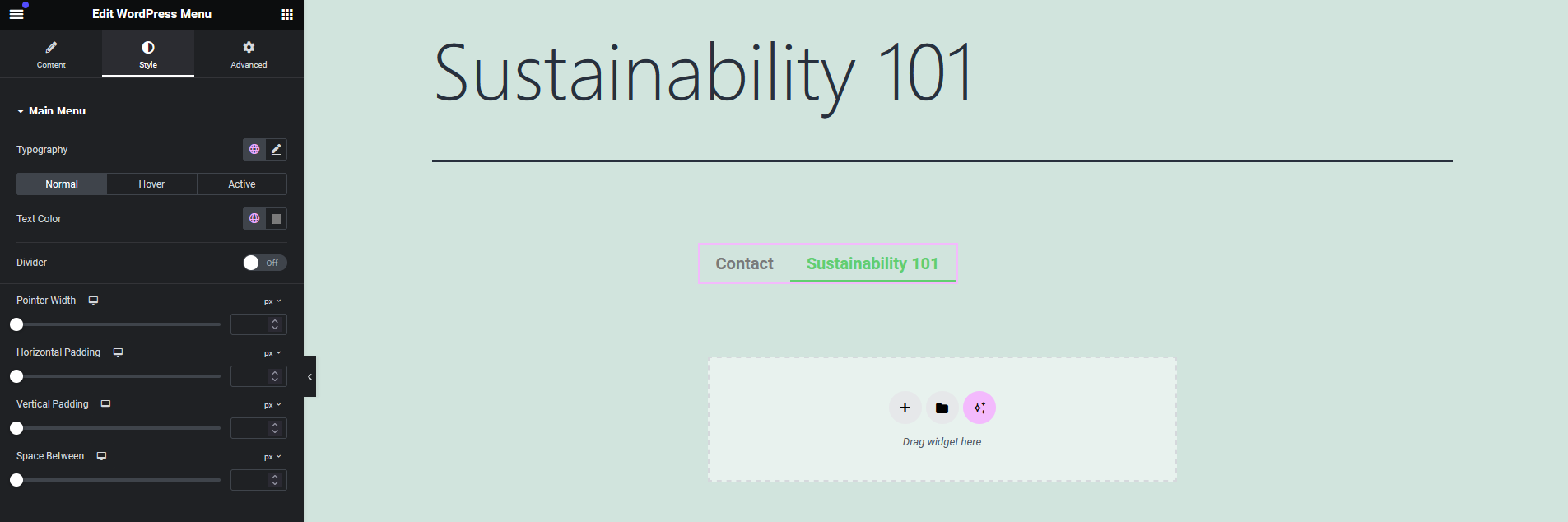
Text and background colors
- Change the text color for menu items and hover states.
- Adjust the background color to complement your website design.
Spacing and alignment
- Use the horizontal padding and vertical padding settings to control spacing.
- Align menu items for a clean, structured look.
Typography and hover effects
- Customize typography by adjusting font size, weight, and style.
- Add hover effects, such as animations or color changes, to make the menu interactive.
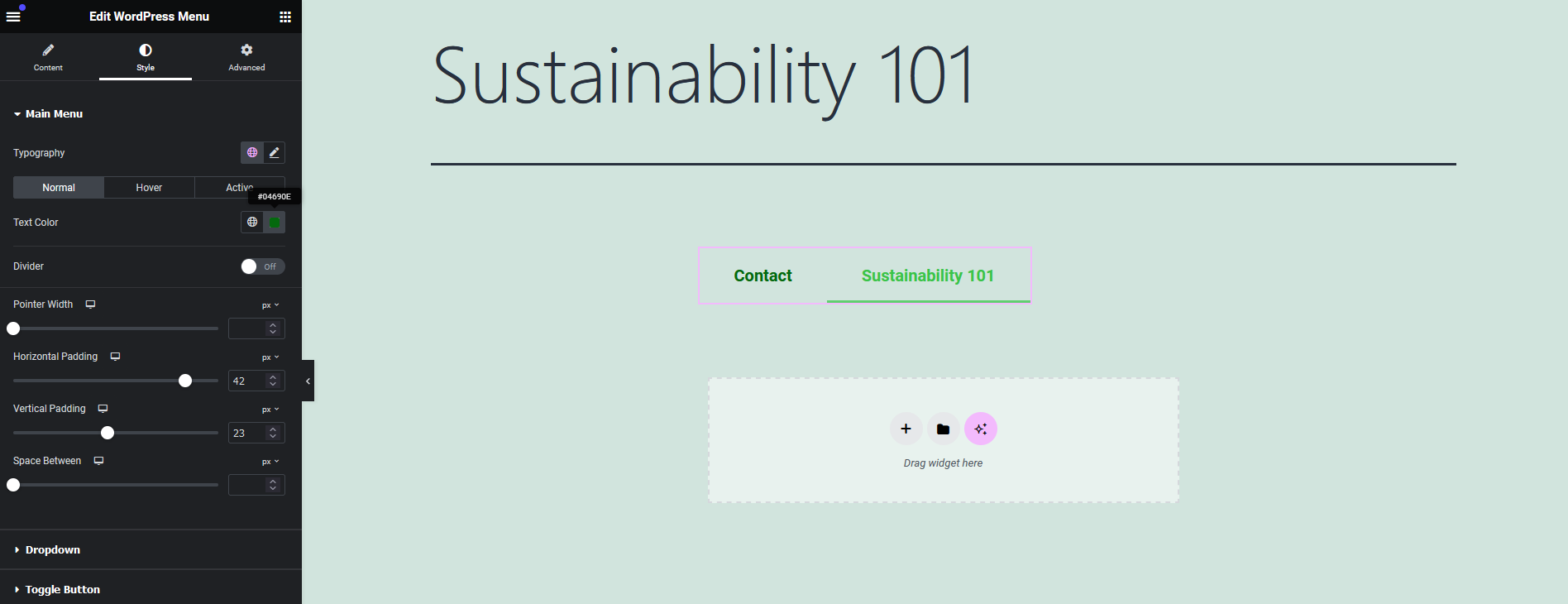
Advanced design options
- Apply a border radius to soften edges for a modern design.
- Add a box shadow for depth and a more dynamic look.
- Use custom CSS for advanced styling.
Create a responsive mobile menu
- Replace the full-width menu with a hamburger icon for smaller screens.
- Add a toggle button to open and close the mobile menu, ensuring a clean layout.
Additional customization options
- Include a submenu indicator for drop-down menus.
- Use a divider to separate menu items visually.
- Add animations to enhance the user experience.
Advanced features with Elementor Pro
Elementor Pro unlocks additional features to elevate your navigation menu design:
- Mega menu. Create advanced drop-downs with multiple columns and rich content.
- Sidebar menus. Add vertical menus for side navigation.
- Pop-up menus. Design interactive pop-ups that open with a toggle button.
Best practices for Elementor menus
- Keep it simple. Focus on usability by avoiding overly complex menu structures.
- Optimize for mobile. Ensure your menu is fully responsive, with well-defined breakpoints.
- Test interactivity. Check hover effects, drop-down menus, and toggle buttons to confirm smooth functionality.
Common menu styles in WordPress
WordPress menus can be customized to fit different design needs. Some common styles include:
- Horizontal menus. Ideal for top navigation bars.
- Vertical menus. Great for side navigation or complex menu layouts.
- Drop-down menus. Used for subcategories or secondary links.
- Sticky menus. Keep menus visible as users scroll.
Why Elementor is the best WordPress page builder
Elementor offers an intuitive drag-and-drop interface, making it easy for beginners and advanced users alike to create custom WordPress websites. With its vast library of widgets, templates, and style options, Elementor simplifies the design process while providing flexibility for customization.
Key Elementor features
- Page builder. Build professional websites with drag-and-drop functionality.
- Addons. Extend Elementor’s functionality with advanced plug-ins.
- Style options. Customize every aspect of your website, from text color to menu structure.
How to create a better user experience with Elementor menus
Navigation plays a critical role in user experience. Here’s how to optimize your menus for better engagement:
- Use clear labels for menu items to improve accessibility.
- Highlight active menu items for user feedback.
- Ensure consistent menu styling across pages for a cohesive design.
Build professional websites and grow your freelance career with Upwork
Adding a navigation menu with Elementor is a straightforward process that improves both the design and usability of WordPress websites. From creating a basic menu to customizing advanced features like mega menus and mobile responsiveness, Elementor offers all the tools you need to design engaging menus.
As a freelance Elementor expert, these skills are invaluable. Upwork connects freelancers with clients looking for website builders, WordPress customization, and Elementor specialists. Whether you’re designing a landing page or building a complete WooCommerce store, showcasing your Elementor expertise can open doors to exciting opportunities.
Start your freelance journey with Upwork and turn your Elementor skills into a thriving career.

.avif)

Author Spotlight

Upwork is the world’s largest human and AI-powered work marketplace that connects businesses with independent talent from across the globe. We serve everyone from one-person startups to large organizations with a powerful, trust-driven platform that enables companies and talent to work together in new ways that unlock their potential.