How To Use ChatGPT: A Beginner’s Guide
Discover the power of ChatGPT with our convenient beginner's guide. Learn to chat, create, and innovate with ease with this popular generative AI tool.

.png)
.avif)
We bet you’ve heard of ChatGPT, the AI chatbot revolutionizing career sectors, improving workflows, streamlining processes, and helping stakeholders cut costs.
ChatGPT offers versatile capabilities like content generation, language translation, question answering, code generation, and sentiment analysis. Its applications span various sectors, including marketing, e-commerce, manufacturing, and supply and distribution. With the release of the GPT-4 model, ChatGPT accepts both images and text prompts, produces even more accurate responses, and exhibits better contextual awareness.
While it isn’t perfect, ChatGPT can enhance your creativity and productivity. But to unlock its full potential, you must know how to use it.
In this article, we provide an in-depth, step-by-step guide on how to use ChatGPT along with tips and best practices to maximize your ChatGPT experience. We also provide real-world success stories to inspire you.
Getting started with ChatGPT
ChatGPT features an intuitive and user-friendly interface to easily submit prompts and get responses. Here’s a guide for getting started with ChatGPT.
Creating an OpenAI account
To access ChatGPT, navigate to chat.openai.com. You need an OpenAI account to submit prompts.
If you’ve never used ChatGPT, you should see the following homepage when you access the OpenAI website via your web browser such as Google Chrome or Microsoft Edge.

If you already have an OpenAI account, click the “Login” button to proceed to the main screen. Otherwise, click on the “Sign up” button to create an OpenAI account.

You can create an OpenAI account using your email and password or a Google, Apple, or Microsoft account.
Once you complete the registration process, you see the following screen where you can interact with ChatGPT.

Apart from the web version, you can also install the ChatGPT mobile app on iOS (from the Apple App store) and Android (from Google Play) and follow a similar process to log in or sign up.
Understanding basic layout and features
ChatGPT has several components serving different functions. Here’s a breakdown of the main UI elements and layouts and what they do.
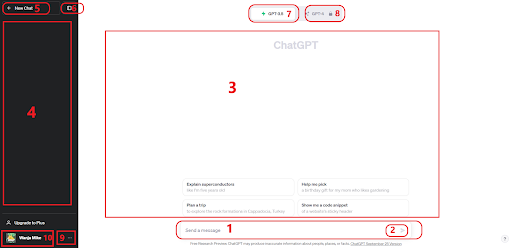
1. This text field allows you to enter a prompt for ChatGPT to interpret. An example of a prompt is “Create a poem about flowers.”
2. The paper plane icon submits your prompt. You can also click the “enter” key on your computer keyboard.
3. This section is used to display ChatGPT’s response to your prompts.
4. ChatGPT stores chat history in this section.
5. This section allows you to clear previous outputs from ChatGPT and start a new chat.
6. Find the black sidebar distracting? This button hides the sidebar.
7. ChatGPT uses GPT-3.5 (generative pre-trained transformer) and GPT-4 large language models to process your inputs and generate appropriate responses. This component shows you’re using the GPT-3.5 model.
8. If you’re a paid user on ChatGPT Plus, this section will show you’re using the more updated model, GPT -4.
9. This component accesses settings, custom instructions, and log out options.
10. This section shows your profile name and image.
Using ChatGPT: basic functions
Whether you’re looking for creative inspiration, need help brainstorming ideas, or are searching for specific information, ChatGPT is versatile and performs various tasks quickly. Here’s how to complete basic functions in ChatGPT.
Writing and submitting prompts
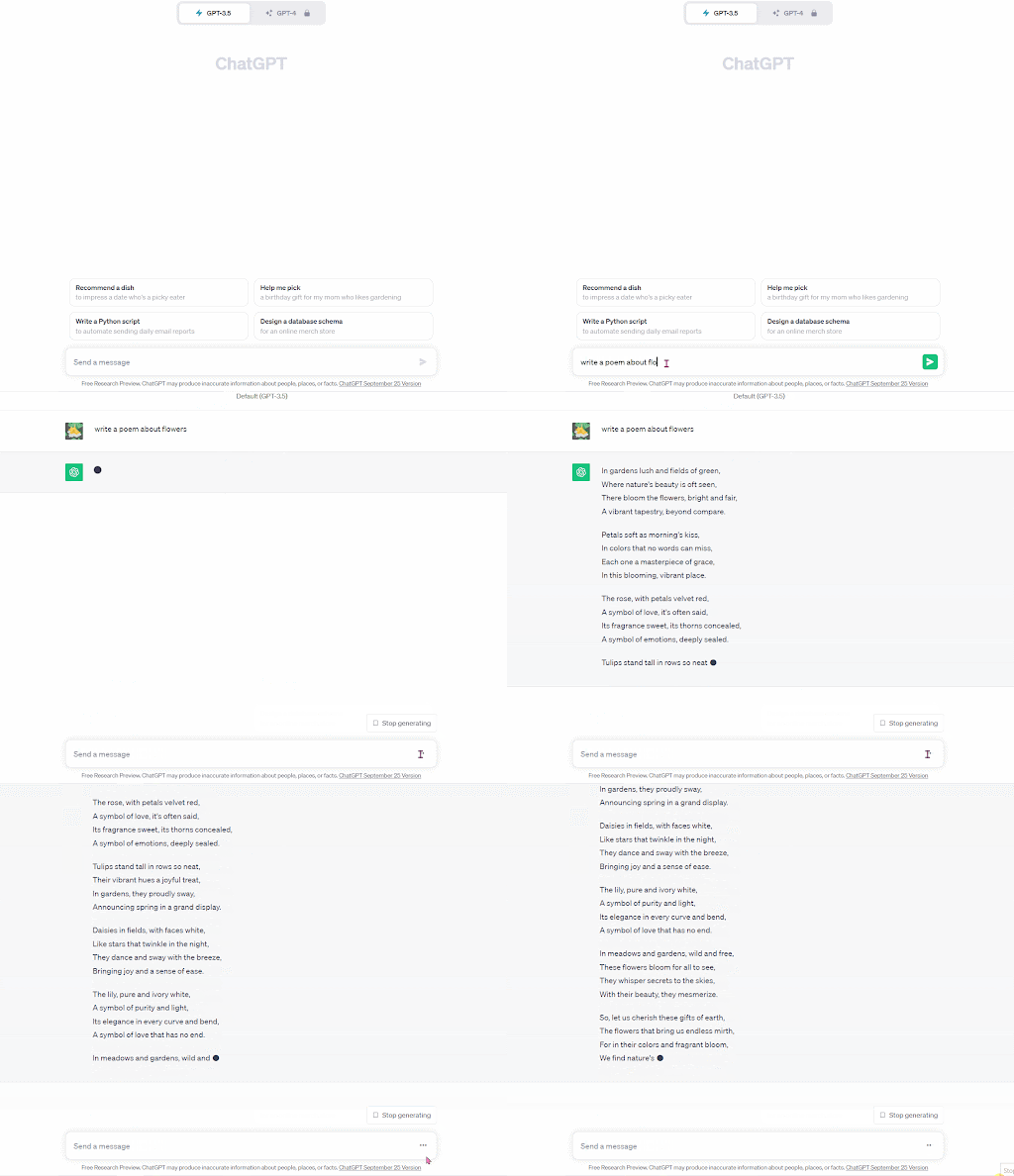
To enter a prompt, simply type in the text field and submit your query. For example, we will submit the prompt “Write a poem about flowers.”
Regenerating a response
ChatGPT is not flawless and can generate unsatisfactory responses. For example, some of the words used in the previous generated poem did not rhyme well. Make ChatGPT refine its output by simply clicking on the “Regenerate” button.
To regenerate our poem about flowers, we proceed as follows.
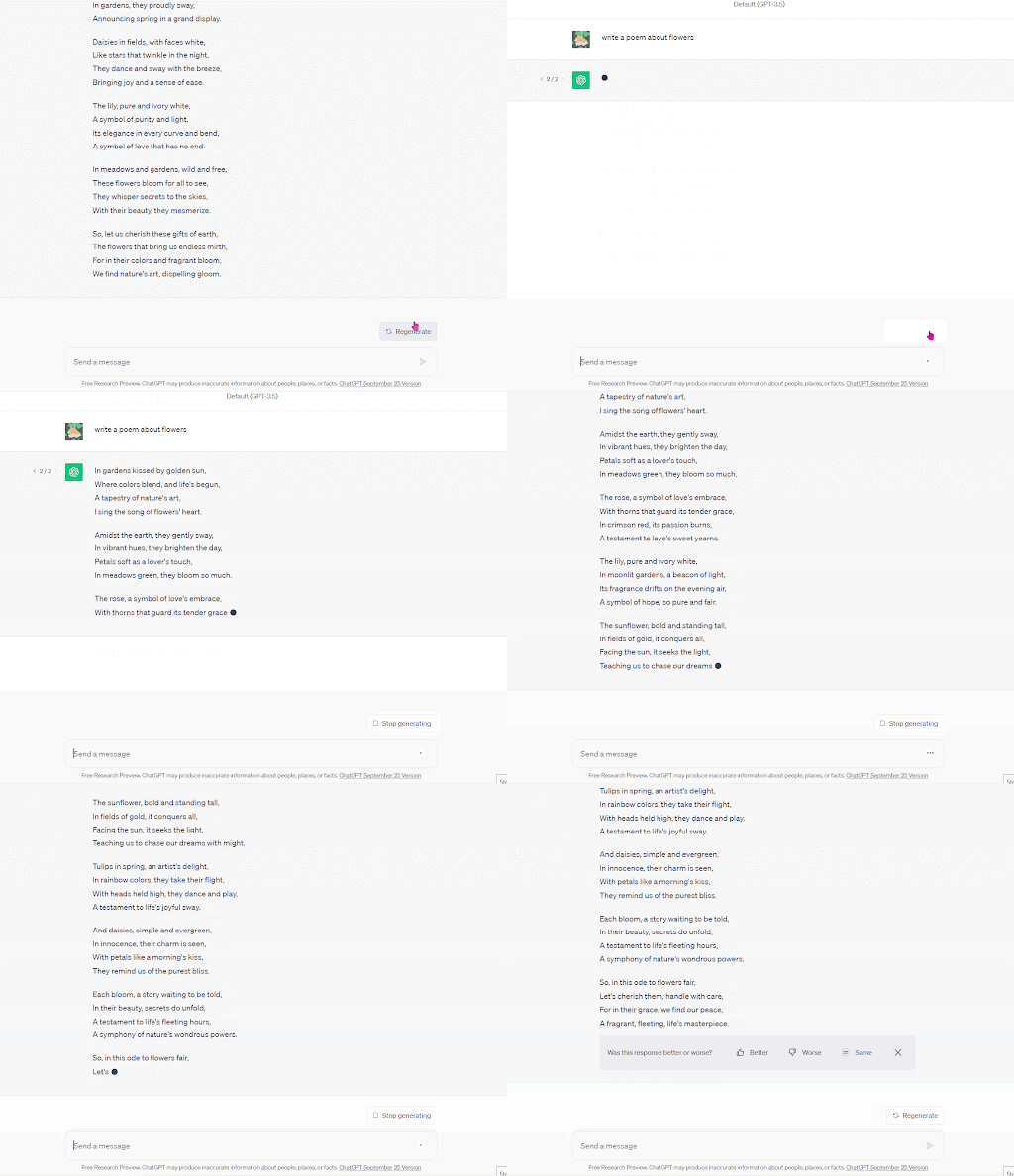
If you still don’t like the regenerated output, you can tweak the prompt to help you get closer to your desired content.
Sharing a response
You can share ChatGPT’s responses with other users using a custom link. To do so, click the “Share chat” button on the top right corner of the web page.

Clicking the “Share chat” button directs you to a preview of the AI-generated content you wish to share. If the content is okay, click the “Copy Link” button to get a shareable link.

Liking and disliking a response
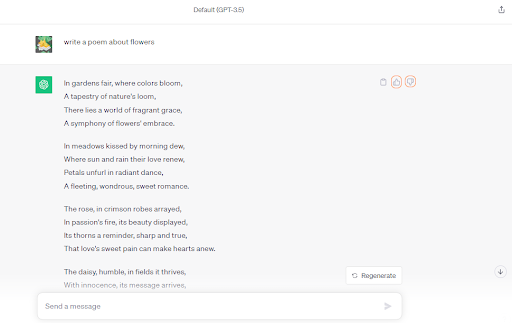
You can like and dislike ChatGPT’s responses to help it learn to produce more refined responses in the future.
Press the thumbs-up icon if you liked the response and the thumbs-down icon if the response was unsatisfactory.
Adding custom instructions
Custom instructions add content you wish ChatGPT to consider in its responses. It saves you time since you don’t have to keep repeating your preferences when using ChatGPT. For instance, you can add a setting to ensure ChatGPT always generates responses in a conversational or casual tone.
To add custom instructions, click your name on the bottom left corner of the web page. Next, click on “Custom instructions” to proceed.

You will first get an explanation of what customization means. After clicking OK, you should see the following popup window.

Let’s specify what ChatGPT should consider in future responses. In this example, we want ChatGPT to remember our company name and the year it started. Here’s how we add this custom instruction.

Once you’ve added the custom instructions, check the “Enable for new chats” checkbox and press the “Save” button.
You can now test your custom instructions by starting a new chat.

As shown above, ChatGPT automatically retrieves our company name from the custom instructions and presents it when required. This is just a simple example demonstrating the custom instructions feature.
You can further extend ChatGPT’s functionality to produce tailored content that matches your brand or performs specific tasks.
Using contextual awareness
ChatGPT keeps track of previous user interactions and uses the information to inform future actions. As a result, it provides conversational experiences with a natural flow.
For example, in the previous step, we asked ChatGPT for our company information. We can take up this conversation by asking it to generate a slogan for the organization, as follows.

Reviewing and managing chat history
ChatGPT keeps a backup of your chat history, allowing you to go back in time for reference. You can find your previous chats on the left sidebar, shown below.
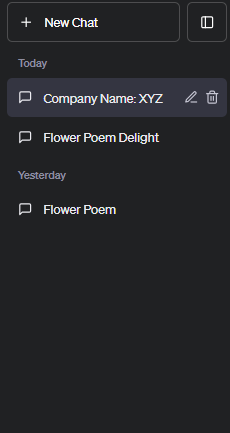
You can edit the name of the chat or delete it entirely. For editing, simply click on the chat and use the pencil icon to edit the title.
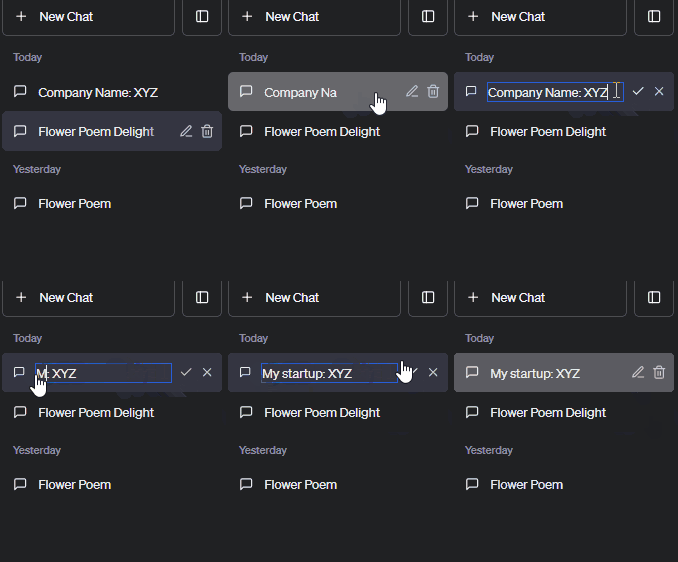
To delete the chat, select the chat history you wish to remove and click the delete button. Confirm in the popup window that you wish to delete the chat to complete the process.

Clearing chat history
Apart from deleting specific chats, ChatGPT allows you to clear your entire history at once.
To get started, click on your name and press the “Settings” button on the popup window.
A new window will come up showing ChatGPT settings. Click the “Clear all chats” to remove your previous interactions. “Confirm deletion” to complete the process as demonstrated below.

Tips and best practices
ChatGPT is an incredibly powerful artificial intelligence assistant, but you must use it correctly to reap its benefits. Here are tips and practices to help you get the most out of ChatGPT.
- Have a clear goal. Knowing what you want to achieve results in better and more relevant responses. Ensure you have clear objectives of what you wish to accomplish.
- Write concise ChatGPT prompts. Though ChatGPT features an advanced natural language processing technology, you must still be clear on what you want it to generate. For example, if you wish to generate marketing content, specify which style and tone ChatGPT should use. A prompt like “In a conversational tone, generate a 500-word article about how service dogs are helpful for people with visual impairments” generates a more meaningful ChatGPT output than simply saying “I need information on service dogs.”
- Refine prompts. ChatGPT may not get everything right on the first attempt, but you can improve your prompts to get more refined responses. For example, if you asked ChatGPT to write a kid’s story, you can refine the response using prompts like “Make the story longer, add more characters, and make it more engaging.”
- Embrace personalization. ChatGPT can produce more tailored responses by learning various aspects about you. For example, provide training data related to your company to help it generate content that suits your brand. If you’re a programmer, use ChatGPT’s custom instructions to specify a preferred programming language, like Python or JavaScript, and coding style for better results. However, you should be careful not to use confidential or sensitive information like your phone number and other contact information in your AI interactions.
Advanced usage of ChatGPT
OpenAI offers a GPT-3 API you can integrate into your web and mobile apps to access ChatGPT functionalities. The ChatGPT API takes a prompt from the user and returns a response, which is then displayed in the application.
You can use the API to perform different specialized tasks. For example, you can create a ChatGPT app to generate travel plans and itineraries. Customize your app further to produce SEO-optimized marketing content, translate languages, provide customer support, and so on.
However, integrating the API into apps requires technical skills in computer science and software development. If you aren’t equipped to handle this level of complexity, consider working with API developers and programmers on Upwork.
You can use the ChatGPT’s latest AI language model, GPT-4, for free via Bing Chat. Google Bard and Anthropic’s Claude are also a good ChatGPT alternative with similar use cases, including text generation and language translation.
Real-world success stories
ChatGPT is a game-changer for many users, helping them perform specific tasks faster, save costs, and enhance their creativity and productivity. Here are some success stories from individuals and businesses who have created ChatGPT plug-ins for various use cases.
- Viable. This business helps other companies understand their customers better. They use the GPT-4 model to analyze customer feedback and provide valuable insights to stakeholders.
- Fable Studio. This business uses ChatGPT and AI models to boost their creativity by crafting engaging and interactive stories. As the CEO of Fable Studio puts it, “GPT-3 has given us the ability to give our characters life. We’re excited to combine an artist’s vision, AI, and emotional intelligence to create powerful narratives.”
- Algolia. This company uses the GPT-3 model to process and interpret customer questions and provide more relevant and coherent responses.
- Alissu. This mobile app uses ChatGPT AI models to perform tasks like text generation, language translation, and research.
Technical aspects
Although ChatGPT can perform various tasks autonomously, it isn’t magic. Underlying frameworks, algorithms, AI technologies, and large datasets contribute to its overall functionality.
ChatGPT is powered by natural language processing technology (NLP), machine learning, and neural networks. NLP allows this generative AI to process and interpret user prompts (human language) and produce meaningful responses.
Machine learning algorithms and neural networks analyze inputs and provide accurate results. ChatGPT is trained on vast amounts of data to perform different tasks. OpenAI also used the reinforcement learning from human feedback technique to train ChatGPT further using human preferences to refine its responses and make it even more accurate.
Privacy and security
OpenAI collects personal information whenever you interact with their services. This includes the prompts you enter in ChatGPT, file uploads, and feedback. It also automatically collects log data, usage data, device information, and cookies. The collected data is used to train and optimize ChatGPT models to produce better results.
Given that situation, you shouldn’t write prompts containing confidential or sensitive information when using ChatGPT. You should also manage your chat history, clearing chats you deem sensitive, to ensure they aren’t used for training. If you’re using the ChatGPT mobile app, only grant necessary permissions to improve your data security.
Enhancements and new features
ChatGPT is constantly updated with new and powerful features. With the release of GPT-4, ChatGPT performs tasks better and more accurately than before. Here are some of the latest updates and features added to ChatGPT.
- Image prompts. With the GPT-4 model, ChatGPT supports both image and text prompts. You can generate outputs simply by uploading images on ChatGPT.
- Internet browsing. OpenAI is currently integrating the internet into its GPT models to facilitate increased search and more refined responses. However, this feature is currently available only to paid users.
- Voice integration. You can use your voice to interact with ChatGPT. However, this feature is still in beta and only available to ChatGPT Plus and Enterprise users.
OpenAI is continuously using reinforcement learning so ChatGPT provides faster responses. However, when it comes to fact-checking, ChatGPT doesn’t produce 100% accurate content all the time. Human oversight is still required to sift out inaccurate and biased content.
ChatGPT releases regular updates, but most new features are not immediately available on the free version. The best way to gain priority access to updates is to upgrade to paid plans like ChatGPT Plus.
Work smarter with ChatGPT
The ChatGPT AI assistant has transformed work by automating tasks, generating content, translating languages, and answering user questions.
The future of ChatGPT is promising. Ongoing research efforts are geared at improving the performance and reliability of AI tools, paving the way for even broader adoption.
Getting the most out of ChatGPT requires effective human and AI collaboration. Individuals must write clear and concise prompts to yield relevant outputs. They should also fact-check the responses to ensure they’re accurate. Consider working with ChatGPT experts on Upwork to help you harness the power of AI.
If you’re an expert looking for work, Upwork connects you to ChatGPT-related jobs and projects so you can help people needing your skills, enhance your portfolio, gain valuable experience, and earn extra income in the process. Get started today!
Upwork does not control, operate, or sponsor the tools or services discussed in this article, which are only provided as potential options. Each reader and company should take the time to adequately analyze and determine the tools or services that would best fit their specific needs and situation.

.avif)

Author Spotlight

Upwork is the world’s largest human and AI-powered work marketplace that connects businesses with independent talent from across the globe. We serve everyone from one-person startups to large organizations with a powerful, trust-driven platform that enables companies and talent to work together in new ways that unlock their potential.