What Is Podia? A Guide for Beginners
Discover the basics of Podia, an all-in-one platform for creating and selling online courses, memberships, and digital products.

.png)
.avif)
Podia is an all-in-one platform designed to help entrepreneurs create, sell, and manage online courses, digital products, and memberships.
Its versatility and user-friendly interface make it a popular choice for creators looking to monetize their expertise. Podia streamlines the process, allowing users to focus on content creation rather than technical details.
In this guide, we'll explore Podia's various features and demonstrate how it can simplify your online business operations. Whether you're a seasoned entrepreneur or just starting out, this comprehensive overview will provide valuable insights into getting started with Podia and gaining maximum value from it.
Let's dive in and see how Podia can help you achieve your business goals.
What is Podia?
Podia is an all-in-one platform that allows entrepreneurs to create, sell, and manage online courses, digital products, and memberships. It's designed to be user-friendly, making it accessible even for those without technical skills.
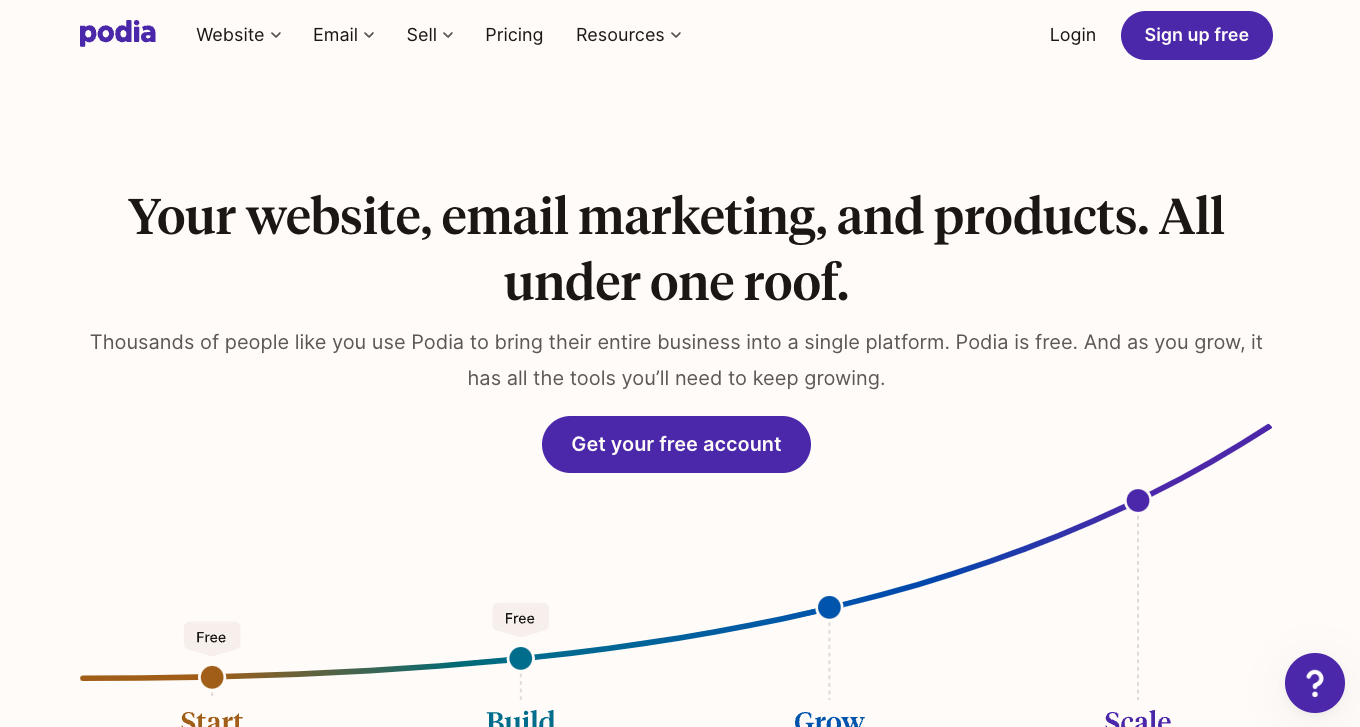
With Podia, you can build a website, host webinars, offer memberships, and sell digital downloads—all from one centralized dashboard. This makes it an ideal choice for creators looking to streamline their online business operations.
Example: Imagine you're an online fitness coach. Using Podia, you can create and sell workout programs, host live training sessions, and offer a subscription-based membership for exclusive content. All these features are managed from a single, easy-to-use platform, allowing you to focus more on delivering quality content to your clients.
Getting started with Podia
To get started with Podia, follow these steps:
- Sign up for an account. Visit the Podia website and click on the "Get your free account" button. Provide your email address and create a password.
- Choose a plan. Podia offers a free plan that allows you to start building your online business without any initial investment. You can upgrade to a paid plan as your needs grow.
- Complete initial setup. After signing up, you'll be guided through an initial setup process, including setting up your store, adding your first product, and customizing your website.
- Explore the dashboard. The user interface is designed to be intuitive.
The main sections include:
- Dashboard. Provides an overview of your sales, customers, and recent activity.
- Products. Allows you to create and manage your online courses, digital downloads, and memberships.
- Storefront. Lets you customize your website's appearance and functionality.
- Messages. Enables you to communicate with your customers and manage email marketing campaigns.
- Settings. Provides options for managing your account details, payment settings, and integrations with other tools.
Creating and selling online courses
Creating and selling online courses on Podia is a streamlined process that allows you to share your knowledge and engage with your audience effectively.
Here's a guide explaining how to use the course creator on Podia:
Uploading content and structuring lessons
- Create a new course. Start by navigating to the "Products" section of your Podia dashboard and selecting "Create a new product." Choose "Online Course" from the options.
- Upload content. You can upload various types of content, including videos, audio files, PDFs, and text. Simply drag and drop your files into the course builder.
- Structure lessons. Organize your course content into modules and lessons. Modules act as categories, while lessons are the individual pieces of content. This structure helps create a logical flow for your students.
Adding multimedia elements
- Embed videos. Podia supports embedding videos from platforms like YouTube, Vimeo, and Wistia. This allows you to include high-quality video content to enhance the learning experience.
- Add audio files. Upload audio lectures or podcasts to provide an alternative learning medium.
- Incorporate downloadable resources. Include PDFs, slides, and other downloadable materials to supplement your lessons.
Setting up drip schedules
- Enable drip content. Drip schedules allow you to release course content gradually over time. This feature helps keep students engaged and prevents them from feeling overwhelmed.
- Schedule content release. Set specific release dates for each module or lesson in the course builder. You can release content on a fixed schedule (e.g., weekly) or based on when a student enrolls.
Benefits of drip schedules:
- Maintain engagement. Students receive content at regular intervals, keeping them interested and motivated.
- Prevent being overwhelmed. Gradual release of content helps students absorb information better and reduces dropout rates.
- Build anticipation. Scheduled releases create a sense of anticipation and excitement for upcoming lessons.
Adding quizzes to courses
- Create quizzes. Navigate to the lesson where you want to add a quiz and select "Add Quiz." You can create multiple-choice, true or false, and short answer questions.
Importance of quizzes:
- Enhance learning: Quizzes encourage active learning and help students retain information better.
- Provide feedback. Immediate feedback on quiz results helps students understand their strengths and areas for improvement.
- Track progress. Quizzes allow you to track student progress and engagement throughout the course.
Hosting webinars and coaching sessions
Podia makes it easy to host webinars and coaching sessions by integrating seamlessly with Zoom and YouTube Live. This allows you to engage with your audience in real time, providing interactive and valuable content.
Here’s how to set up and manage live sessions and create and offer coaching sessions on Podia.
Integration with Zoom and YouTube Live
Set up Zoom integration:
- Navigate to the "Integrations" section in your Podia dashboard.
- Connect your Zoom account by entering your Zoom credentials.
- Once connected, you can schedule and manage Zoom webinars directly from Podia.
Set up YouTube Live integration:
- Go to the "Integrations" section in Podia and connect your YouTube account.
- Schedule live streams on YouTube Live, and Podia will manage the integration, allowing you to embed the live stream into your Podia site.
Managing live sessions
Schedule webinars:
- In the "Products" section, select "Webinar" and enter the details, including the title, date, time, and a brief description.
- Choose whether to host the webinar on Zoom or YouTube Live and link the appropriate account.
Promote your webinar:
- Use Podia’s email marketing tools to send invitations and reminders to your audience.
- Share the registration link on your social media channels and website.
Host the session:
- On the day of the webinar, go to your Podia dashboard, start the session, and engage with your attendees.
- Use interactive features like Q&A, polls, and screen sharing to make the session dynamic and engaging.
Follow up:
- After the session, send follow-up emails with a recording of the webinar, additional resources, and any next steps.
Creating and offering coaching sessions
Create coaching products:
- In the "Products" section, select "Coaching" and create a new coaching product.
- Define the details, including each session's title, description, pricing, and duration.
Set up scheduling:
- Use Podia’s built-in scheduling tool to manage your availability.
- Allow clients to book sessions directly through your Podia site based on your predefined schedule.
Establish pricing and payment:
- Set the price for your coaching sessions. You can offer single sessions or packages.
- Podia handles the payment processing, making it easy for clients to pay for sessions upfront.
Manage client interactions:
- Communicate with clients through Podia’s messaging system to confirm bookings, share session links, and provide additional information.
- Keep track of your coaching schedule and client details in the Podia dashboard.
By integrating with Zoom and YouTube Live, Podia provides a robust platform for hosting webinars and coaching sessions. This integration ensures smooth management of live sessions and client interactions, allowing you to focus on delivering high-quality content and personalized coaching to your audience.
Selling digital products and downloads
Podia simplifies the process of creating and listing digital products like ebooks, audio files, and templates. Whether you're an author, musician, or designer, you can monetize your digital creations seamlessly. Here’s how to start selling digital products and implementing drip content for them.
Creating and listing digital products
Create a new product:
- Navigate to the "Products" section of your Podia dashboard.
- Click on "Create a new product" and select "Digital Download" from the options.
Upload your digital content:
- Add your digital files by dragging and dropping them into the upload area. This can include ebooks (PDFs), audio files (MP3s), templates (ZIP files), and more.
- Provide a title and description for your product that clearly explains its value and contents.
Set pricing:
- Determine the price for your digital product. You can set a fixed price, offer a pay-what-you-want option, or make it available for free.
- Add any relevant upsell options to encourage customers to purchase additional products.
Customize the product page:
- Use Podia’s customization tools to design your product page. Add images, testimonials, and additional details to make your product appealing.
- Preview your product page to ensure everything looks perfect before it goes live.
Publish and promote:
- Once your product is ready, click "Publish" to make it live on your Podia store.
- Promote your digital products using Podia’s email marketing tools, social media integrations, and promotional banners on your site.
Implementing drip content for digital products
Enable drip content:
- Similar to online courses, you can set up drip schedules for digital products. This feature allows you to release parts of your digital product over time, keeping customers engaged. In the product setup, select the option to enable drip content.
Schedule content release:
- Define the release schedule for each file or section of your digital product. You can set specific release dates or intervals based on the purchase date.
Benefits of drip content for digital products:
- Maintain customer engagement. Gradually releasing content keeps customers returning to your platform, building anticipation and sustained interest.
- Manageable learning pace. For educational materials, dripping content helps customers absorb information at a steady, manageable pace.
- Increased retention. Providing continuous value over time reduces the likelihood of refunds and increases customer satisfaction.
Building your website with Podia
Podia offers a user-friendly, drag-and-drop website builder that allows you to create a professional and attractive website without any coding knowledge.
Here’s how to make the most of Podia's customization options and create effective sales and landing pages that convert visitors into customers.
Using the drag-and-drop website builder
Access the website builder:
- Navigate to the "Storefront" section of your Podia dashboard.
- Click on "Edit Website" to open the drag-and-drop website builder.
Customize your website:
- Add sections. Use the builder to add various sections to your site, such as headers, text blocks, images, videos, testimonials, and call-to-action buttons.
- Drag and drop. Arrange the sections by simply dragging and dropping them into place. This intuitive interface makes it easy to design your layout.
- Edit content. Click on any section to edit its content. You can change text, replace images, and adjust settings to match your branding.
Choose a theme:
- Select a theme from Podia’s library to give your site a cohesive look. Themes are fully customizable, so you can tweak colors, fonts, and styles to fit your brand.
Tips for creating effective sales and landing pages
Setting up and customizing the storefront
- Add products to your storefront. In the "Products" section, ensure all your digital products, courses, memberships, and webinars are listed and published.
- Customize the storefront layout. Go to the "Storefront" section and click "Edit Storefront." Arrange your products in an attractive layout. You can feature bestsellers or new arrivals or categorize products to make navigation easier for visitors.
- Enhance product pages. Customize each product page with detailed descriptions, high-quality images, and videos. Include customer reviews and testimonials to add credibility.
- Design consistency. Maintain a consistent design across your storefront and product pages. Use your brand colors, fonts, and style to create a cohesive look.
Marketing and sales tools
Podia offers a suite of marketing features and sales tools to help you effectively reach your audience and maximize your revenue. From email campaigns and upsells to affiliate marketing programs, Podia has you covered.
Here's how to set up and manage these tools.
Setting up and managing email campaigns
Create an email campaign:
- Navigate to the "Email" section of your Podia dashboard.
- Click "Create Campaign" and choose between a one-time email or a drip campaign.
Segment your audience:
- Use segmentation to target specific groups within your audience. You can segment based on purchase history, course enrollment, or other criteria. This helps you send personalized and relevant content to different audience segments, increasing engagement and conversions.
Set up automation:
- Automation allows you to send emails based on specific triggers, such as a new signup or a purchase. In the "Automation" section, create rules that trigger emails based on user actions. For example, send a welcome email immediately after someone subscribes to your newsletter.
Design your emails:
- Use Podia’s email editor to design visually appealing emails. You can add images, videos, and call-to-action buttons to enhance your message.
- Preview your emails to ensure they look great on both desktop and mobile devices.
Creating upsells and optimizing the sales funnel
Create upsells:
- Upsells encourage customers to purchase additional products or services. In the "Products" section, choose a product for which you want to create an upsell.
- Click on "Upsell" and select a related product to offer as an upsell during the checkout process.
Optimize the sales funnel:
- Streamline your checkout process to reduce friction and increase conversions. Ensure your checkout page is simple and easy to navigate.
- Use clear and compelling CTAs throughout the sales funnel to guide users toward making a purchase.
Analyze and improve:
- Use Podia’s analytics tools to track the performance of your upsells and sales funnel. Monitor conversion rates, average order value, and other key metrics.
- Make data-driven decisions to refine and optimize your sales strategies over time.
Setting up and managing an affiliate program
Enable the affiliate program:
- In the "Affiliates" section of your Podia dashboard, click "Enable Affiliate Program."
- Define the commission structure and terms for your affiliates. Decide on the percentage of sales affiliates will earn and any specific conditions they must meet.
Recruit affiliates:
- Invite your existing customers, followers, and network to join your affiliate program. Provide them with a unique affiliate link to track their referrals.
- Use email campaigns and social media to promote your affiliate program and attract new affiliates.
Manage affiliate interactions:
- Track the performance of your affiliates in the "Affiliates" section. Monitor sales generated, commissions earned, and top-performing affiliates.
- Communicate regularly with your affiliates, providing them with marketing materials, updates, and support to help them succeed.
Integrations and functionality
Podia integrates with a variety of tools to enhance your online business's functionality and streamline your workflows. Here’s a look at some key integrations and how to embed third-party content and tools into your Podia site.
Key integrations
Embedding third-party content and tools
Pricing plans and transaction fees
Podia offers a range of pricing plans to cater to different business needs, each with a variety of features to help you build and scale your online business. Here’s a detailed look at Podia’s pricing plans and the associated transaction fees with Stripe and PayPal:
- Free plan. Ideal for beginners who want to start building their online presence without upfront costs.
- Starter plan. $9 per month (or $4 per month if you pay annually). Ideal for users looking to personalize their website with a custom domain and start selling limited products.
- Mover plan. $39 per month (or $33 per month if you pay annually). Ideal for entrepreneurs ready to sell online courses and other digital products with lower transaction fees.
- Shaker plan. $89 per month for the first year (or $59 per month if you pay annually). Ideal for established businesses looking to use advanced marketing features and scale their operations without transaction fees.
Here's a comparison table of the features that come with each plan:
Transaction fees
Podia uses Stripe and PayPal for payment processing, and while the platform itself may not charge transaction fees on certain plans, these payment processors have their own fees:
Stripe fees
- Domestic transactions. Typically 2.9% + $0.30 per transaction.
- International transactions. Additional fees may apply, varying by country.
PayPal fees
- Domestic transactions. Usually 2.9% + $0.30 per transaction.
- International transactions. Vary by country and can include additional currency conversion fees.
Additional features and customizations
Podia offers additional features and customization options to help you create a unique and engaging online presence. Here’s how to set up custom domains, personalize fonts, build and manage an online community, and access customer support.
Setting up custom domains and personalizing fonts
Setting up a custom domain:
- Navigate to settings. Go to the "Settings" section in your Podia dashboard and select "Domain."
- Add your domain. Enter your custom domain name. You’ll need to update your DNS settings with your domain registrar to point to Podia’s servers. Detailed instructions are provided in the Podia dashboard.
- Verify and connect. Once your DNS settings are updated, verify the domain in Podia. This may take a few hours to propagate. After verification, your custom domain will be live.
Personalizing fonts:
- Access site editor. In the "Storefront" section, click on "Edit Website."
- Choose fonts. Select the "Fonts" tab. Podia offers a variety of font options to match your brand’s style.
- Apply changes. Preview your selections and apply the changes to update the fonts across your site, ensuring a consistent and professional look.
Building and managing an online community
Create a community:
- Navigate to the community feature. Go to the "Community" section of your Podia dashboard.
- Set up your community. Click "Create Community" and enter the necessary details, such as the community name, description, and rules.
Engage members:
- Post content. To keep members engaged, regularly share valuable content, such as articles, videos, and discussion prompts.
- Moderate discussions. Ensure a positive and respectful environment by moderating discussions and addressing any issues promptly.
- Offer exclusive benefits. To add value and encourage participation, provide community members with exclusive access to content, discounts, or events.
Manage community settings:
- Customize layout. Use Podia’s customization tools to design your community page, adding banners, images, and descriptions.
- Set privacy levels. Choose whether your community is open to the public, invite-only, or private for paying members.
Customer support options
Podia offers several customer support options to help you make the most of the platform.
One of the primary support channels is live chat. Available directly from your Podia dashboard, live chat allows you to connect with a support representative in real time. This immediate assistance can be invaluable when you need quick answers to questions or help resolving issues on the spot. Simply click on the chat icon in the bottom right corner of your dashboard to start a conversation.
The Podia platform also provides email support for more detailed inquiries. If you have a complex issue or question requiring a detailed explanation, you can email the Podia support team. They aim to respond promptly so you receive the help without significant delays. This method is ideal for issues that may not require instant resolution but need thorough attention.
Podia offers a wealth of self-service resources through its extensive help center, too. The help center includes a wide range of articles, tutorials, and guides that cover almost every aspect of using Podia. Whether you're looking for step-by-step instructions on setting up a feature or seeking tips on best practices, the help center is a valuable resource.
Additionally, Podia hosts live webinars and workshops where experts demonstrate new features, share strategies, and provide insights to help you succeed. These resources ensure that you have continuous access to knowledge and support, empowering you to use Podia effectively and grow your business.
Podia examples and uses
Podia is a versatile platform that helps various professionals achieve their business goals through its robust features. Here are two examples of how different professionals can use Podia:
- Graphic design. A graphic designer can use Podia to teach skills globally. Using Podia's intuitive course builder, they can create comprehensive online courses with video lessons, PDF guides, and project files. They can also set up a community within Podia for student interaction and feedback. To boost enrollments, they can leverage Podia’s email marketing tools to send promotional emails and newsletters.
- Fitness trainer. A fitness trainer could offer workout programs and nutritional guides to clients worldwide through Podia. They can create structured online courses with video demonstrations and written instructions, allowing clients to follow at their own pace. They can also build a community where clients share progress and support each other. Using Podia’s drip schedule feature, they can release new workout modules weekly to keep clients engaged and motivated.
These examples illustrate how Podia can support professionals in teaching, coaching, and selling digital products while engaging their audience effectively.
Find Podia experts on Upwork
Podia is an all-in-one online platform designed to help professionals with things like making a sales page, creating courses, and building a membership site.
Whether you're looking to sell courses, offer consultations, or foster a community, Podia’s features provide the tools needed to manage and grow your online business.
From creating engaging online courses and setting up a seamless sales page to managing memberships and prelaunch activities, Podia supports your business every step of the way.
If you need help maximizing Podia's potential, consider hiring a Podia expert on Upwork. These providers can help you optimize your Podia setup, create effective marketing strategies, and manage your community.
If you’re a Podia expert yourself looking for your next project, Upwork has what you need. Get started today.
Upwork is not affiliated with and does not sponsor or endorse any of the tools or services discussed in this article. These tools and services are provided only as potential options, and each reader and company should take the time needed to adequately analyze and determine the tools or services that would best fit their specific needs and situation. Prices are current at the time of writing and may change over time based on each service’s offerings.

.avif)

Author Spotlight

Upwork is the world’s largest human and AI-powered work marketplace that connects businesses with independent talent from across the globe. We serve everyone from one-person startups to large organizations with a powerful, trust-driven platform that enables companies and talent to work together in new ways that unlock their potential.