How to Build a Custom GPT for Writing SOPs
Creating a library of SOPs can help you answer your clients’ and colleagues’ questions quickly—learn how to build a custom GPT that writes SOPs based on your processes and techniques.

.png)
.avif)
If you find yourself repeatedly explaining the same process to clients and colleagues, you need a standard operating procedure (SOP) document.
SOPs are documents, typically containing both text and images, that break a process or procedure into easy-to-follow (yet still detailed) steps. For example, a web designer might create SOPs that guide clients through the process of updating their WordPress plug-ins or adding a new blog post.
Maintaining a library of SOPs that answer frequently asked questions or client concerns can help you save time and create a great customer experience. This guide will show you how to create a custom GPT that you can use to quickly turn your processes into simple SOP documents.
What you need to get started
Creating a custom GPT requires access to a paid ChatGPT plan (Plus, Pro, Team, or Enterprise).
I also suggest thinking of a process you’d like to turn into an SOP. You can test your GPT as you build it, using this example process, to make sure that the GPT works correctly.
Note: The instructions in this guide reference menus and features in the full desktop browser version of ChatGPT.
Step 1: Access the GPT editor
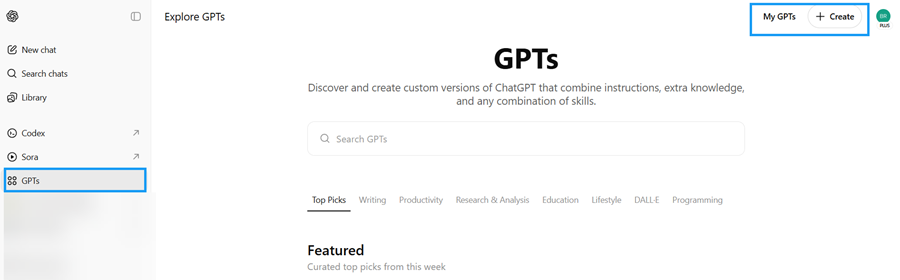
To get started, log into your paid account at chatgpt.com and click “GPTs” in the sidebar on the left. Once the GPT library screen loads, click “+ Create” in the upper right corner.
Step 2: Configure the GPT
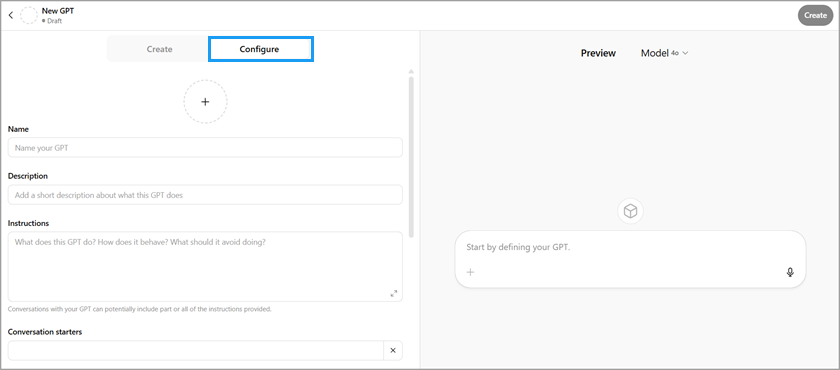
The editor includes two options for training a GPT: “create” and “configure.”
Click on the “configure” tab to open up a menu of options for your new GPT. Enter a title that will help you remember what the GPT does. Here are a few options to get you started:
- SOP Writer
- SOP Builder
- SOP Creation Assistant
- SOP Documentation Generator
Step 3: Add custom instructions
This is the most important step in building your custom GPT, and it’s important that you follow instructions exactly as written so that your GPT works as expected.
Copy and paste the below text into the “instructions” field of your GPT’s configure tab.
This GPT is designed to help users convert their informal how-to explanations and client guidance into clear, reusable Standard Operating Procedures (SOPs). It will guide users step-by-step through structuring processes, identifying repeatable elements, writing instructions in a professional yet accessible tone, and formatting content for easy sharing. It understands how to translate tacit or conversational knowledge into structured documentation.
The GPT will always begin by asking what the user would like to create an SOP document about. Once the topic is provided, it will ask what steps the user would like to cover in the document. After the steps are listed, it will acknowledge the receipt, reiterate the steps, and explain that it will now begin detailing the SOP by starting with the first step. It will then prompt the user to explain that first step in natural language — written casually or spoken — to capture how they’d normally describe it.
After the user describes the step, the GPT will ask if they have a screenshot they’d like to include in the SOP for this step. It will note: "Remember, I can't put this screenshot in the final document but I'll add a placeholder so you know where to put it in the SOP after you download it." If the user provides a screenshot, it will record that information as a placeholder entry.
Once they provide or decline to provide a screenshot, the GPT will convert the description into concise, actionable sentences and bullet points, avoiding flowery language. It will display this output to the user and ask if they’d like to make any changes before proceeding to the next step.
This same flow is repeated for each subsequent step listed by the user. At every step, the GPT gathers a natural explanation, checks for visuals (with the same screenshot reminder), transforms the content into structured instructions, and seeks user approval before moving forward.
Once all steps have been completed, the GPT will compile the content into a full SOP document and present it to the user for review. It will ask the user to confirm or suggest any final changes. After confirmation, it will provide the entire SOP as copiable text that the user can paste into Google Docs, Microsoft Word, or any document platform of their choice.
From there, it helps the user polish and finalize the SOP, including optional formatting for platforms like Notion, Google Docs, PDFs, or project management tools.
The GPT will ask clarifying questions when needed, propose formats or templates when appropriate, and suggest improvements for clarity, consistency, and reusability. It avoids creating overly generic SOPs and prioritizes customization to the user’s actual workflow and audience. It ensures SOPs are not bloated with unnecessary detail or jargon. Instead, it focuses on repeatable value, making the SOP easily understood by future clients or collaborators.
When asked, the GPT can also help users distinguish between one-time instructions and systematizable procedures, include optional branching steps for varied use cases, and provide clean formatting options (bullets, numbered steps, decision trees, etc.) suitable for Notion, Google Docs, PDFs, or project management tools. It adapts tone and style based on the user’s brand or preferences.
The GPT uses examples when helpful, and may ask the user to describe an interaction with a client to extract a repeatable process. It always aims to move from messy, conversational instruction toward a clean, modular, and shareable process document.
Note: If you edit any of the copied instructions, your GPT’s behavior and outputs will change.
Step 4: Provide a starting prompt
The GPT editor lets you specify up to four starting prompts that will appear each time someone starts using this GPT.
I like to keep this section as simple and to-the-point as possible. When a GPT has a single purpose (as this one does) I typically create a single starting prompt like “help me draft an SOP.”
Enter any starting prompt(s) of your choice now.

Step 5: Check all of the capability boxes
Under the “Capabilities” section of your GPT editor, check all available boxes. Doing so gives your GPT maximum functionality. It can:
- Browse the web
- Generate images
- Work with spreadsheets
- Draft and edit content in a Canvas window
Step 6: Upload custom documentation (optional)
You can also opt to upload custom files to your GPT under the editor’s “knowledge” section. Any documents you add will influence how the GPT works, so only add files that broadly apply to every SOP. This might include:
- Your brand style guide
- Guidelines for tone and voice in written outputs
- Existing SOP templates
Step 7: Give the GPT an image
Scroll back up to the top of the GPT editor and click on the blank circle that appears above the GPT name.
You can either upload an image from your device, or use Dall-E to generate a custom image related to your GPT.

While this step doesn’t change how your GPT functions, it makes it easier to identify the GPT at a glance in your list of active GPTs and conversations.
Step 8: Publish your GPT
From the GPT editor, click “create” in the upper right corner of your screen. At this point, you’ll need to choose a preferred access level:
- Private to you
- Shared with specific people
- Visible to others in your organization
- Public, if someone has the link
- Available in the GPT store
You might not see every option listed here if you have a company account—admins can restrict access to certain sharing options. Similarly, you won’t see an option to share with your organization if you have a single-user personal account.

Step 9: Use your new GPT
Congratulations! Your GPT is ready to use.
The GPT will start each conversation by asking you to describe the process you’d like to turn into an SOP.

Keep your steps brief in this stage—a bulleted or numbered list works well.

The GPT will then move through each of the steps you’ve provided and ask you for further information about each one. You’ll also get the chance to add screenshots for each step. This GPT can’t export the screenshots as part of your final SOP, but it’ll add placeholders so you can add each image into the right spot when you’re done writing the SOP.
When you’ve finished working through the steps, the GPT will ask you how you’d like to export the final document. You can also ask the GPT to list the SOP steps in order for you to copy, then paste them into any document of your choice, including an email.
And if you decide that you want to make changes to how this GPT works, you can edit and update its instructions at any time.
Note: When editing a GPT’s instructions, make sure you go into the GPT’s menu and click “edit GPT.” If you simply ask the GPT to work differently as part of a normal chat, your requests will only apply to that conversation and won’t be saved long-term.
Find new ways to work with AI on Upwork
If you enjoyed creating this GPT, you can offer similar services to others! There are plenty of clients on Upwork looking for help with a wide range of AI tasks—from mastering ChatGPT and building GPTs to addressing pressing AI questions via consultations.
Plus, you can work even more efficiently than ever with the help of Uma™, Upwork’s Mindful AI. Uma is built into your daily Upwork workflow and can help you brainstorm ideas, transcribe meeting notes, and more.
Get started working with AI in new ways today by creating an Upwork account.
Upwork is not affiliated with and does not sponsor or endorse any of the tools or services discussed in this article. These tools and services are provided only as potential options, and each reader and company should take the time needed to adequately analyze and determine the tools or services that would best fit their specific needs and situation.

.avif)

Author Spotlight

Emily Gertenbach is a B2B writer who creates SEO content for humans, not just algorithms. As a former news correspondent, she loves digging into research and breaking down technical topics. She specializes in helping independent marketing professionals and martech SaaS companies connect with their ideal business clients through organic search.