How to Apply Superscript and Subscript Formats in Excel
Learn how to apply superscript and subscript formats in Excel using various methods, including formulas, custom formatting, and keyboard shortcuts.

.png)
.avif)
If you use Microsoft Excel for your business, you know how much you can do with it. It’s a great tool for organizing information, creating schedules, and visually representing data.
However, Microsoft Excel can do much more than create spreadsheets. There are Excel options for just about everything you can imagine. This article is a tutorial on creating superscripts and subscripts in Microsoft Excel.
What are superscripts and subscripts in Excel?
Superscripts and subscripts are tiny letters or numbers attached to another word or number. A superscript is typed above the baseline of the word or number it’s attached to, while a subscript is typed below the baseline. Subscripts are less common than superscripts.
Using subscripts and superscripts in your Excel sheets can improve the clarity of the information in them. Subscripts and superscripts make things like mathematical equations and registered trademarks easily recognizable to whoever you share your spreadsheet with.
Here are some situations where a superscript or subscript might come in handy:
- Mathematical concepts. One of the most common uses of a superscript in mathematics is when you’re representing a number to a certain power. For example, 3 to the third power (3 x 3 x 3) would be written as 33.
- Number order. You could use a superscript to write down a sequence of instructions, events, or results. Let’s say you’re sharing the results of an auto race. You might have to show which car came in 1st, 2nd, and 3rd.
- Footnotes. If you’re an author, you might use a superscript to point readers toward information in a footnote or endnote. For example, let’s say you cite several sources as footnotes. The third listed on the page will look something like this: (information)3.
- Trademark symbols. You can use superscripts to identify intellectual property. For example, if you have a registered trademark on your product, you’d write it like this: (product)®.
- Chemical formulas. Chemists describe compounds with subscripts. For example, the chemical formula for water is H2O. This means water has two hydrogen atoms and one oxygen.
If you’re still unsure when to apply superscripts or subscripts, a Microsoft Excel expert can help you out. If you’re looking for Excel experts for your team, explore what Upwork can do for you. We’ll introduce you to remote workers from all over the world who can help your company reach its potential.
Superscript and subscript to text values
Adding superscripts and subscripts to text values in Excel is easier than adding them to numbers. This is because when they’re attached to numbers, the sequence may convert to a single string, which can mess up your data.
With that said, there are several ways to add superscripts and subscripts to normal text in your Excel worksheets.
1. Subscript and superscript with format text
Using a subscript or superscript to format text can make it easier for team members to identify items like chemical compounds and squared numbers in your spreadsheet at a glance.
Here’s a rundown of how to add a subscript or superscript to your worksheet.
- Select the text you want to change, right-click, and select Format Cells to access the dialog box.
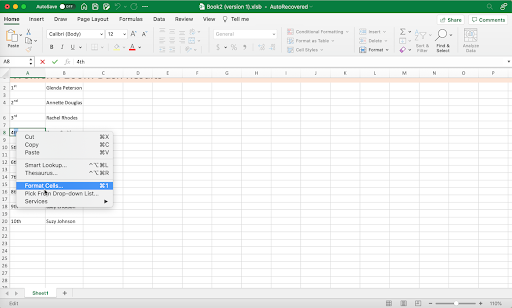
- When the dialog box appears, make sure the Font tab is selected.
- Check the box next to the Superscript or Subscript option and press OK. Your text should change automatically.

2. Subscript and superscript with a keyboard shortcut
Unfortunately, there are no shortcut key combinations in Excel for turning text into a superscript or subscript. However, you can use one to open the Format Cells dialog box.
- With the text you want to change selected, press CTRL + 1.
- After you open the dialog box, select either the Subscript or Superscript checkbox with your cursor.

- Alternatively, while in the Format Cells dialog box, you can press Alt + E (for Windows) or Option + E (for Mac) for superscript or Alt + B or Option + B for subscript.
3. Subscript and superscript with Quick Access Toolbar icons
If you’re using Excel 2016 or later or have a Microsoft Office 365 subscription, you can add superscript and subscript to your Quick Access Toolbar (QAT). You’ll want to follow these steps:
- Locate and select the downward-pointing arrow next to the QAT in the top left-hand corner of your Excel sheet. On some computers, you’ll have to select “...” instead of the downward-facing arrow. Select More Commands.


- Select the drop-down list below Choose Commands From and click Commands Not in the Ribbon.

- Select Subscript and Superscript and move them over to Customize Quick Action Toolbar using the right-facing arrow.

- After doing this, you should see the symbols for subscript and superscript in your QAT bar. You’ll also get hotkeys for completing the functions. For subscript, press Alt + 4 or Option + 4. For superscript, press Alt + 5 or Option + 5.

If you’re trying to add a subscript or superscript on someone else’s spreadsheet, you might find that you’re unable to select certain menu commands. For example, you might find that More Commands is grayed out and you can’t click it.
The most likely reason for this is that the worksheet or workbook is protected. Here’s how to unprotect a worksheet or workbook in Excel.
- Select the Review tab in the Excel ribbon. Toward the right of the ribbon, you’ll see two spreadsheet icons with locks on them. If the worksheet is protected, the icon on the left will say Unprotect Sheet. If the whole workbook is protected, the icon on the right will say Unprotect Workbook.
- Click the appropriate option.

- Enter in the correct password to unprotect the sheet or workbook.

4. Subscript and superscript with Excel ribbon button
If that’s still not enough choices for you, Excel also lets you create superscript and subscript buttons on the ribbon. Like creating a QAT button, this feature is only available in certain Excel versions.
- Right-click on any spot in the ribbon (the row with tabs and icons that includes Alignment, Number, Styles, and Editing) to activate the Customize the Ribbon dialog box. On some computers, you might need to click the “...” symbol instead. If this is the case, you’ll see a Ribbon & Toolbar dialog box. Make sure the Ribbon Tab is selected.

- Under Choose Commands From, select Commands Not in the Ribbon and select Main Tabs under Customize in Ribbon. Click the side-facing arrow beside Home under Main Tabs.
- Now, you’ll need to create a new group for your functions. Choose where you want your subscription command to be under Home. Press + at the bottom and select New Group.

- Click the gear above New Group and select Rename. On some computers, the Rename feature may have its own tab to the right of New Group under the Main Tabs box. Give your new group a name that you can easily remember, like “Scripts.”

- With your new group selected, locate Subscript and Superscript in the commands list. Select one option and use the right arrow in the middle of the screen to move it into your group. Then, do the same with the other. Press Save.

When you get back to your worksheet, you’ll see your new superscript and subscript commands at the top right of your ribbon on the Home tab.

Superscript and subscript to numbers
Using superscripts and subscripts becomes a little more complicated when you’re using numbers. For example, let’s say you’re trying to write the value “52” in a cell. When you turn the “2” into a superscript, the string will revert to “52” as soon as your cursor moves to another cell.
Excel can only create subscripts and superscripts for text. To make your number readable to Excel as text, you can add an apostrophe before the numbers, like ‘5^2. However, be aware that, as text, your numbers will not return a result in Excel. That means you’ll have to do your own math if you plan on including solutions like in the example below.

The four main ways to superscript and subscript to numbers in Excel are:
1. Subscript and superscript in equations
Excel has several prewritten equations you can add to your spreadsheet with superscripts and subscripts already included. The Equations dialogue box includes equations like the formula for the area of a circle, the Pythagorean theorem, and the binomial theorem. Keep in mind that equations in the program can’t return results and will appear as floating data on your spreadsheet.
To access Excel equations:
- Click the Insert tab.
- Press the downward arrow next to Symbols at the top-right of your Excel workbook.
- If you click the downward arrow next to Equations, you’ll see a list of prepared equations for you to use, like the Area of a Circle equation and the Pythagorean Theorem.
You can also design your own equation by pressing the 𝜋 icon above Equations. When you create your own equation or add an equation to your workbook, it’ll appear in the middle of your worksheet as a floating data point (not in a cell).
A new tab called Equation will also appear in your Excel ribbon and be automatically selected. Underneath the new tab, you’ll find the Equation toolbar. The Equation tab and toolbar will only be visible while the equation on your worksheet is selected.
The toolbar contains several options for customizing your equations. For example, it has a symbols group with mathematical signs you can use in your equations, like ±, ÷, and many others. The tool bar also gives you options to add things like fractions, exponents, and functions to your equations.
When you add an equation to your Excel sheet, it won’t appear in a particular cell. You’ll have to adjust it to fit your needs.

2. Superscript with a keyboard shortcut
Excel’s character function codes allow you to use keyboard shortcuts to add 1, 2, or 3 as superscripts to numbers. Characters in Excel are sets of keys that return various numbers, letters, and special characters.
Microsoft has a list of all the character codes on its website. Unfortunately, there are only superscript character codes for the numerals 1, 2, and 3 and no character codes for subscripts. These also won’t work on all computers.
- Click an empty cell to select it.
- Hold down Alt or Option and type in the correct superscript or subscript shortcut on your computer’s number pad.some text
- Alt + 0185 or Option + 0185 creates a superscripted 1.
- Alt + 0178 or Option + 0178 creates a superscripted 2.
- Alt + 0179 or Option + 0179 creates a superscripted 3.
On some computers, you may need to create the superscript in an empty cell before you can use the keyboard shortcut. If that’s the case, type in a number in front of the superscript after you create it.
Some versions of Excel also limit the character functions to certain fonts. For example, you may find that you can only create superscripts using this method if you’re typing in fonts like Calibri and Arial.
3. Subscript and superscript with custom format
Try creating a custom format to add a superscript or subscript to several numbers.
- Select all the cells you want to format.
- Open the Format Cells dialog box with CTRL + 1.
- Choose the Number tab.
- Click Custom under the Category drop-down list.
- Under Type, write in 0 to serve as a digit placeholder.
- Hold the Alt or Option key and type in the code of the superscript or subscript on the numeric keypad. For instance, you would type in 0, press and hold Alt or Option, type in 0178, then let go of Alt or Option to make a custom number format for superscript 2.
- Click OK. (You might not see the subscript or superscript in the cell immediately. If this is the case, type a number in the cell and press enter. The script should appear above or below your number.)

Even though Excel only has character codes for superscripts 1, 2, and 3, you can still create a custom format for other superscripts and subscripts. However, you’ll need to have created the script inside Excel or in another program like Google Chrome or Microsoft Word.
Follow the same process as before and select Custom in the Numbers tab of the Format Cells dialog box. Once again, type in 0 as your placeholder. Then, copy and paste your superscript or subscript from Excel or another program next to your placeholder. You may have to type a number into the cell before you can see your new script.
4. Superscript with a formula
Another way to add superscripts is by using Excel formulas. This method will only work for superscripts 1, 2, and 3. It won’t work for subscripts or superscripts that don’t have character codes. This method also won’t work with all computers.
- The superscript formula for 1 is CHAR (185).
- The superscript formula for 2 is CHAR (178).
- The superscript formula for 3 is CHAR (179).
Let’s say you’re creating a spreadsheet. You’ve typed in the value 25 in cell A3 (column A, row 3) of your worksheet. You want to create a superscript format 2 in cell B3 (column B, row 3) for 25 (the value in cell A3) to represent 25 to the 2nd power.

- Click on cell B3 and type the formula =A3&CHAR(178) in the formula bar.
- The value 252 should appear in cell B3 as a text string.
Make your spreadsheets as presentable as possible
One of the great things about Microsoft Excel is that it accommodates several work styles and preferences. Whether you want to create superscript and subscript characters, AutoFit columns of entire cells, or complete any other function, the program gives you plenty of ways to do it.
It takes an expert to get the most out of Microsoft Excel. With Upwork, you can find freelance professionals with skills like data visualization, database management, and anything else you need to complete your business projects. We’ll even help you narrow down your search to only the best possible workers for your needs.

.avif)

Author Spotlight

Upwork is the world’s largest human and AI-powered work marketplace that connects businesses with independent talent from across the globe. We serve everyone from one-person startups to large organizations with a powerful, trust-driven platform that enables companies and talent to work together in new ways that unlock their potential.