How To Create an Eye-Catching Discord Banner for Your Server
Learn how to create and customize eye-catching Discord banners that will help your server stand out. Get the perfect size, dimensions, and design tips.

.png)
.avif)
Your Discord server's banner is the first thing people coming to your server notice—it's your digital billboard. Likewise, your Discord profile banner represents you as an individual user. A well-designed Discord banner grabs attention and sets you or your community apart.
Discord profile banners and server banners have different dimensions: Server banner images are 960x540 pixels, and profile banner images are 600x240 pixels.
The right Discord banner can make your server and profile feel more polished and engaging. This guide covers everything from basic dimensions to advanced customization, helping you design banners that stand out and effectively represent you or your community—whether you need a cute banner for your Minecraft gaming group or creative hub or a sleek image for your professional profile.
Types of Discord banners and images
Discord offers several key positions for images throughout your server. Below are the requirements for each:

Server banner
Also called a channel list header image, this appears at the top of a Discord server's channel list, essentially representing the server's brand or visual identity.
- Dimensions: 960x540 pixels (16:9 aspect ratio)
- File size: ≤10MB
- Formats: PNG, JPG, GIF (animated GIFs require Nitro subscription)
Profile banner
This banner is displayed on a user's individual Discord profile page. It's much like a social media cover photo.
- Dimensions: 600x240 pixels (5:2 aspect ratio)
- File size: ≤10MB
- Formats: PNG, JPG, GIF (animated GIFs require Nitro subscription)
Invite splash image
This image appears when a user clicks an invite link in a web browser.
- Dimensions: 1,920x1080 pixels (16:9)
- File size: ≤10MB
- Formats: PNG, JPG
Designing your Discord server banner using Canva
Just like any YouTube banner or TikTok thumbnail, your Discord server's banner should be eye-catching and reflect your server's purpose. Canva's free banner maker is a widely used graphic design tool that works for everything from social media Discord banners to Twitch headers.
If you would rather find a pre-designed Discord banner, explore the designs available on Pfps (short for "profile pictures). You can also hire a graphic designer or Canva freelancer to create a professional banner.
For a DIY option, follow our tutorial below for an intro to creating an eye-catching Discord server banner using Canva.
Set up your design space
1. Go to Canva's website and either create or log in to your account.
2. Click the "Create a design" button.

3. Select "Custom Size" from the options.

4. Enter Discord's required dimensions: 960x540 for a server banner, 600x240 pixels for a profile banner, or 1,920x1080 pixels for an invite splash image.

5. Click "Create New Design."
Create your design
1. Choose from Canva's banner templates or upload a custom image for the background.

2. Browse Canva's library of design elements or upload your own custom graphics or images—Discord Nitro users can use animated banners or banner gifs. The elements available depend on your Canva account's pricing tier.

3. If you want to add text, select fonts that reflect your server's brand identity (consider sleek fonts for professional profiles and fun fonts for casual servers).
Finalize and export
1. Review your design at 100% zoom to check the image quality.
2. Click the "Share" button in the top right corner.

3. Choose "Download" and select PNG format for best quality.
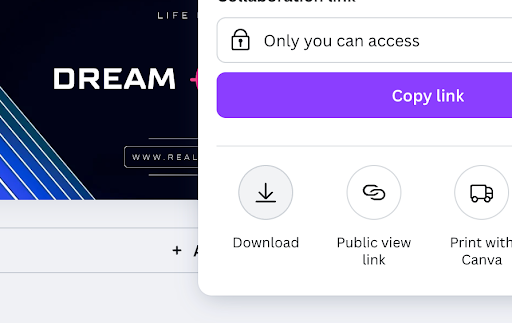
4. Use the highest resolution settings available for your export. Note: Some features, such as the ability to resize the image, may only be available with a paid Canva subscription.

Make your Discord server stand out
An effective Discord banner tells a visual story that represents your server's purpose and attracts the right community members. Start with the basics detailed in this guide, then experiment with different design approaches and update your banner as your server evolves.
Need help creating a Discord banner or want to connect with clients who could use your services? Hire graphic designers on Upwork or Find banner design jobs on Upwork.
Upwork is not affiliated with and does not sponsor or endorse any of the tools or services discussed in this article. These tools and services are provided only as potential options, and each reader and company should take the time needed to adequately analyze and determine the tools or services that would best fit their specific needs and situation.

.avif)

Author Spotlight

Upwork is the world’s largest human and AI-powered work marketplace that connects businesses with independent talent from across the globe. We serve everyone from one-person startups to large organizations with a powerful, trust-driven platform that enables companies and talent to work together in new ways that unlock their potential.