How To Use Jasper: A Beginner’s Guide
Unlock the potential of Jasper AI with our step-by-step guide. Learn how to set up, navigate, and optimize Jasper AI for your projects.

.png)
.avif)
Generative artificial intelligence (AI) tools are making it easier than ever for anyone to create content.
To get the best possible output when writing with the help of AI, you need to have a good grasp on prompt engineering. This can be tricky if you’re new to using AI writing tools—which is where services like Jasper come into play.
Jasper is a powerful application that can help you create high-quality content without any prior AI or writing experience.
Your Jasper account gives you access to an array of templates that make it easy to get started. All you need to do is follow the steps laid out by Jasper, enter information about the content you wish to create, and customize the outputs to sound more like your writing voice.
Loads of features are available in Jasper, though, so let’s take a closer look at everything you need to know.
How Does Jasper AI Work?
Jasper AI uses advanced machine learning models, including custom, proprietary models and well-known third-party models such as OpenAI’s GPT-4 (ChatGPT), Cohere, and Anthropic.
Jasper features various templates that can help content creators streamline their workflow, or you can provide direct prompts in a blank document. The tool takes these inputs, runs them through its language models, and produces content that aligns with the style and context you’ve specified.
Jasper’s functionality is further enhanced by features such as brand voice training, dynamic templates, and memory functions, which allow it to produce consistent, high-quality outputs across different types of content. Whether you’re generating blog posts, social media updates, or ramping up your email marketing, Jasper adapts to your needs, offering a seamless content creation experience.
Using Jasper for the first time
You must have an account to use Jasper, and it is a paid service. Sign-up is simple: Select a plan, enter your billing details or free trial code, and create a password.
Every Jasper plan comes with access to handy AI marketing tools like:
- Copywriting templates and workflows
- A document editor
- A plagiarism checker
- Language translation features
- The Jasper Everywhere Chrome extension
Navigate the Jasper interface
Once you’ve created your account, you’ll be directed to your new Jasper dashboard.

From this page, you can:
- Create new short- or long-form content with the Jasper writing assistant
- View your recent documents and AI outputs
- Access all the content you’ve created with Jasper
- See content organized by campaign
- Add examples of your brand voice to further train Jasper
- Chat with the Jasper AI
- Access frequently used tools, workflows, and templates
- Start generating images to complement your written content
As you use Jasper more frequently, you can “star” your favorite documents and templates. These favorites will show up along the left-hand sidebar of your dashboard, so you can get to them quickly in the future.
Customize your writing style
Before you use Jasper at length, it’s a good idea to take some time to customize the AI. You can use Jasper’s “brand voice” feature to provide the tool with additional context around how your content should sound.
To get started, click on Brand Voice in the Jasper menu. This is on the left side of your dashboard. From here, you can select “knowledge base” or “voice and tone.”
When you upload files to your knowledge base, you grant Jasper access to review the contents of each document. These knowledge base files give Jasper context about your business operations, products, services, and more.

This feature is useful if you plan to use Jasper to create website content. For example, if you’re going to be creating blog posts for your e-commerce store, you can upload your product list, product descriptions, and target audience breakdown to the Jasper knowledge base.
This will give Jasper important context around what you’re marketing, and whom you’re marketing it to.
The knowledge base alone might not be enough to fully customize Jasper, though. That’s why it’s also important to visit the voice and tone section of your account.

All the files you upload here will tweak the way your Jasper outputs sound. You’ll want to upload as many examples of your brand’s tone of voice as possible. This could include:
- Interviews
- Chat transcripts
- Social media posts
- Blog posts
- Ad copy
You can also provide your website URL—Jasper’s AI will scan the pages to glean voice and tone information.
You can keep adding more brand voice information to Jasper, too. You don’t have to worry about having every bit of documentation added before you explore the rest of what Jasper offers.
Experimenting with Jasper prompts
It’s also a good idea to experiment with how prompting works in Jasper before you kick off your content creation efforts.
If you’ve tried generating content with a chatbot-style AI writing assistant, you might be used to feeding in a singular prompt, waiting for a response, providing another prompt to revise it, and so forth. Jasper’s a little different—it’s a more guided process.
When you click the “create content” button on your dashboard, you’ll see four options:
- Blank document
- New document from template
- New blog post (a shortcut to a blog template)
- New art

Jasper Templates
Starting with a new document from a template is a good way to get accustomed to how Jasper works. When you select this option, you’ll have a long list of templates you can choose from.

Each template produces a different type of content, and you can access templates for things like:
- Amazon product descriptions
- Blog post introductions
- Blog post topic idea brainstorming
- Business names
- Feature and benefit descriptions
- Google My Business profiles
- Instagram threads
- Landing pages
- Personal bios
- Customer review responses
- Website FAQ
Once you select a template, you’ll see a split window appear.

By filling in the fields to the left, you’ll generate a prompt. You won’t see this prompt displayed as a paragraph; all of that is done behind the scenes.

Once you click “generate content,” the output appears to the right. You can ask Jasper to create multiple output versions at once—scrolling vertically down the page will show you each version that’s produced.
The more detailed you can make a prompt, the better. More context about your topic helps Jasper produce a more accurate output.

Blank Documents
Blank documents work similarly, though the prompt process is not as guided. When you’re working in a blank document, you can try giving Jasper one prompt for the entire document, or use a series of prompts to craft a longer piece of content that contains several subsections.

For a completely free-form experience, open a blank document and click on the eye symbol at the top middle of your screen. This will allow you to edit without any templates.
If you hover over the last word in Jasper’s most recent output, you’ll see a small arrow appear with the words “keep writing.” Clicking on this arrow will tell Jasper to keep writing content based on your original prompt and previous outputs in the document.
AI art
You can also ask Jasper to create art to go along with your content. Simply type in your basic prompt, click “enhance prompt” to get an expanded, more detailed version, and fill out Jasper’s additional fields about mood, medium, artistic inspiration, and more.

You can even start with a template that produces art in a specific style, such as “ink art” or “storybook illustrations”.
Creating content in Jasper
All kinds of content templates are available in Jasper—and you can create just about anything you want with a blank document.
The bulk of professionals using Jasper, though, will probably turn to several marketing-ready templates again and again: ones for creating blog posts, articles, social media posts, emails, and ads.
Blog posts and articles
The easiest way for most people to create their first blog post in Jasper will be to use the “One-Shot Blog Post” template.

Load the template, fill out all the listed fields, and click generate—that’s it. Jasper will produce a full blog post, complete with subheadings to break up the content.
It takes less than 10 seconds for Jasper to generate a blog post—though it may be on the short side, depending on your topic. Still, it’s a starting point that you can use and expand upon to reach your desired word count.
There’s also a Jasper blog post outline template, which can be helpful for getting over writer’s block or preparing content briefs.
Social media content
You can quickly filter Jasper’s templates by topic, making it easy to see everything that might be useful when creating social media content.

As with other Jasper templates, you’ll just need to fill in the required fields and select the number of outputs you’d like to produce. In a matter of seconds, you can get a selection of Instagram captions, TikTok captions, LinkedIn posts, and more.

You can then use or adjust these outputs as you see fit.
Marketing emails
While Jasper includes a template to write entire cold emails, many of its email tools can help you enhance or add to your existing marketing email drafts.
If you’ve prepared a series of e-commerce product emails to go out to customers, you can use Jasper to write catchy headlines that might help you get clicks.

And if you’re not satisfied with how your most recent batch of content-heavy emails performed, you can feed them into Jasper and see what the Content Improver tool produces.

Digital ads
Jasper can also help you create short-form content for a single digital ad or an ad campaign. It includes templates for Google and Facebook ads, as well as the AIDA (attention, interest, desire, action) framework—which can help you write ads for other platforms, too.

As with other Jasper templates, all you need to do is fill out the fields on the left, select the number of outputs you want, and click generate to see your new text.
You can also provide Jasper with copy from ads that you like—this will help the tool produce outputs more closely in line with what you want.
Using Jasper’s advanced features
Once you’re comfortable with how Jasper works, you can begin exploring some of its more advanced features. These allow you to use the AI in more ways and potentially produce more content at a higher level.
AI writing workflows
While Jasper templates are easy to use, many of them focus on creating short-form content like an ad or a social post. Step-by-step workflows can help you create longer-form content with a similarly simple process.
To use workflows, open a blank Jasper document and click the icon—in the top center of your window—that looks like a split screen. You’ve now entered “power mode,” and all of the available templates and workflows appear to the left.
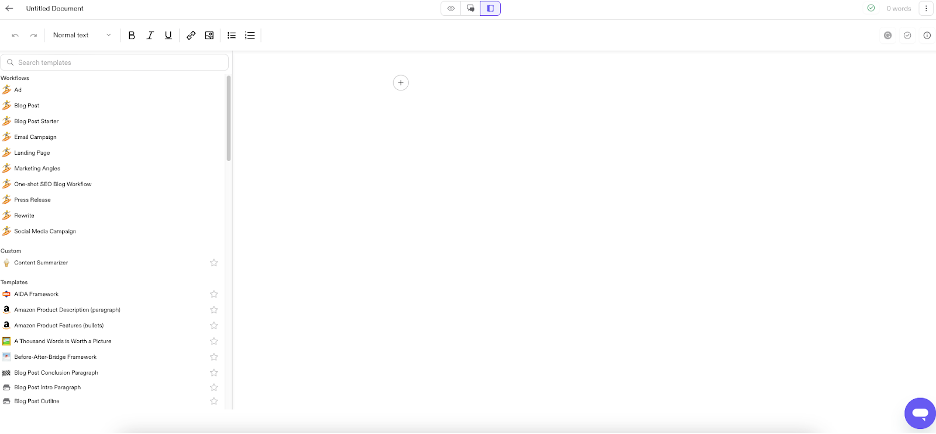
Once you select a workflow, a series of fields will appear along the left. You’ll find a lot more fields to fill out than when using a template. This is because Jasper will use the information you provide at different points in the content creation process.

As you answer the questions asked for each section, Jasper will deliver outputs you can review, revise, and add to your draft. By the time you’re done, you’ll have a full piece of content—from the intro all the way through the conclusion paragraph.

You can access workflows for:
- Ads
- Blog posts
- Email campaigns
- Landing pages
- Marketing campaigns
- Press releases
- Social media campaigns
Another workflow will help you rewrite existing content that you aren’t quite happy with.
Search engine optimization (SEO)
If you have a Surfer SEO subscription, you can use it to turn Jasper into an SEO writing tool.
To get started, you’ll need to go into your Jasper workspace settings and turn on “Surfer SEO” under the integrations menu.

Now, whenever you’re working on a document, you can click on the Surfer SEO icon, which looks like a little bar chart, at the top of your window. This will open a Surfer panel along the left and give you access to SEO tools directly in your editor.
Multi-language support
You can also use Jasper to translate or create content in other languages. You can toggle this feature on under the integrations menu in your workspace settings—the same spot where we turned on Surfer SEO.

You can select default languages in the settings if you want to, or leave it as is. By turning on language options, you’ll be able to select a new input and output language each time you generate an output with Jasper.
Fill out the input fields in your starting language, select an output language, and Jasper will do the rest.

That said, because any AI tool can hallucinate, you may want to still have a native or fluent speaker of your output language proofread and fact-check your content for accuracy. You can find professional translators right here on Upwork who can help with this.

API and software integrations
While individuals will need to use Jasper directly through its web interface, businesses can opt to use Jasper’s API. Doing so integrates Jasper’s AI model closely into your operations, so it learns more about your company’s:
- Services
- Brand voice
- Mission and vision
- News and media mentions
- Editorial process
Coupled with Jasper’s web app and browser extension, you’ll have access to Jasper content generation in nearly any text field while you’re working.
Using the Jasper API also provides more security features, such as:
- Single sign-on (SSO)
- Google Workspace login
- Password-free authentication
- Built-in data protection measures
Jasper also says that API customers’ data won’t be used to train their consumer AI. Still, you may wish to follow good data security practices when using this or any other AI tool.
If you aren’t quite ready to use or need the Jasper API, you can still use Jasper in more places through integrations. You can connect Jasper to a variety of other popular business tools like:
- Webflow
- Google BigQuery
- Google Sheets and Docs
- Make automation
- Grammarly
Jasper also works with Zapier, which can help you connect the tool to even more applications than the ones listed on Jasper’s website.
Jasper pricing
Jasper plans start at $49 per month, or $39 per month if paid annually. The Creator plan grants you access to the tool for one user. If you need to work with a team, you can opt for Jasper’s Teams plan, which offers three user seats.
Larger companies will want to get in touch with Jasper to discuss custom pricing plans and enterprise-grade features, including API integration.
Need more guidance? Find it on Upwork.
If creating AI content is interesting to you, but not something you have the bandwidth to tackle, you can connect with just the right professionals on Upwork. Whether you have long-term collaboration needs or just want some help getting started, find the right resources here.
From prompt engineers who can help you better interact with tools like Jasper to AI content editors who can put the final polish on your Jasper outputs, they’re all here on Upwork. You can even chat with our helpful AI assistant to guide you through the process of finding the right person to help! Just sign up or log in to your Upwork account today to get started.
Prices are current at the time of writing and may change over time based on each service’s offerings.

.avif)

Author Spotlight

Upwork is the world’s largest human and AI-powered work marketplace that connects businesses with independent talent from across the globe. We serve everyone from one-person startups to large organizations with a powerful, trust-driven platform that enables companies and talent to work together in new ways that unlock their potential.